Getting Started with Nudge Flows
Easily create, manage, and remove Nudge Flows to enhance your sessions
Creating Nudge Flows
You can create Nudge Flows from either the Nudges page or directly from a session on the Calendar page.
Option A: From the Nudges page
-
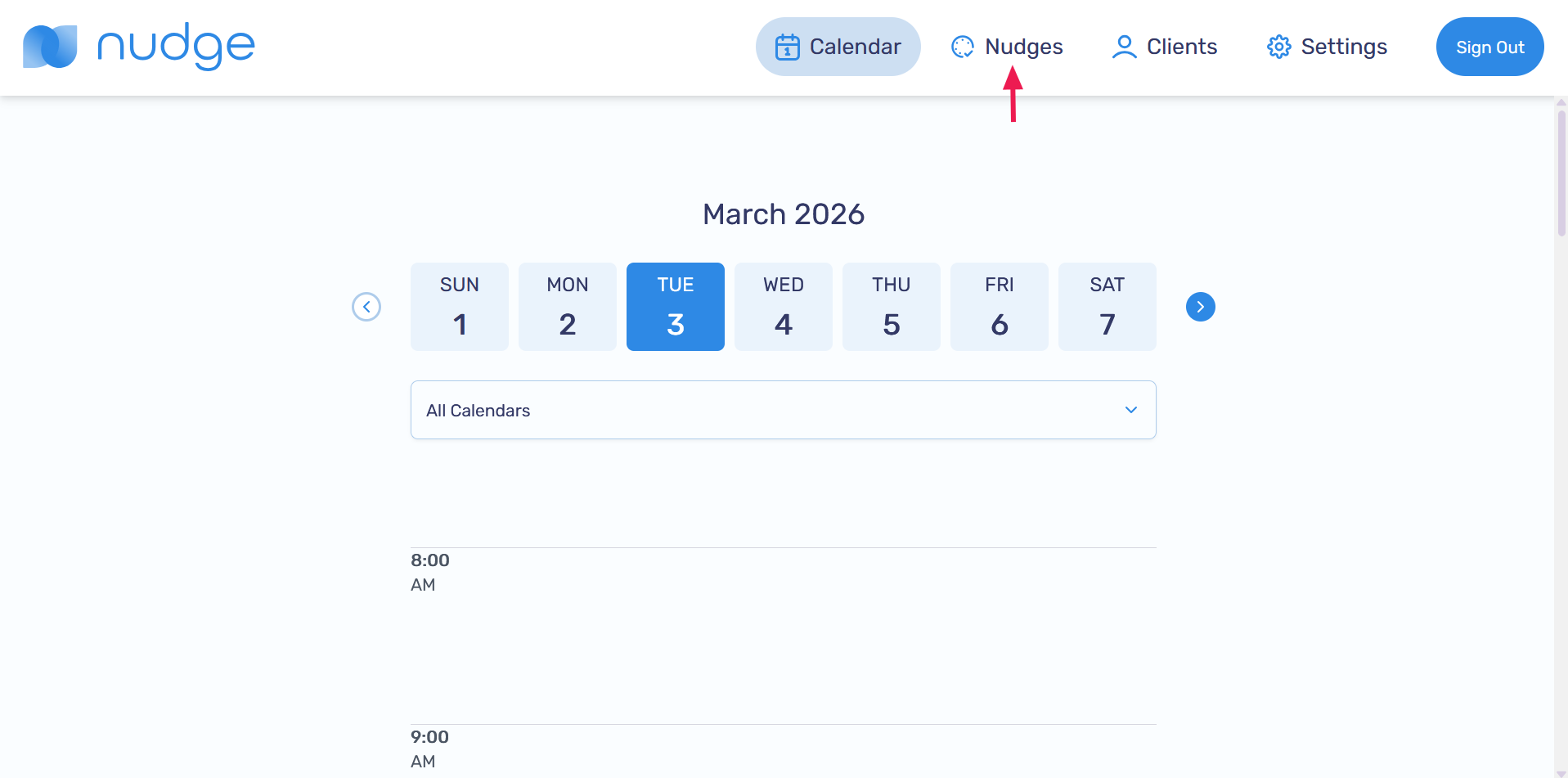
Go to the Nudges page
-
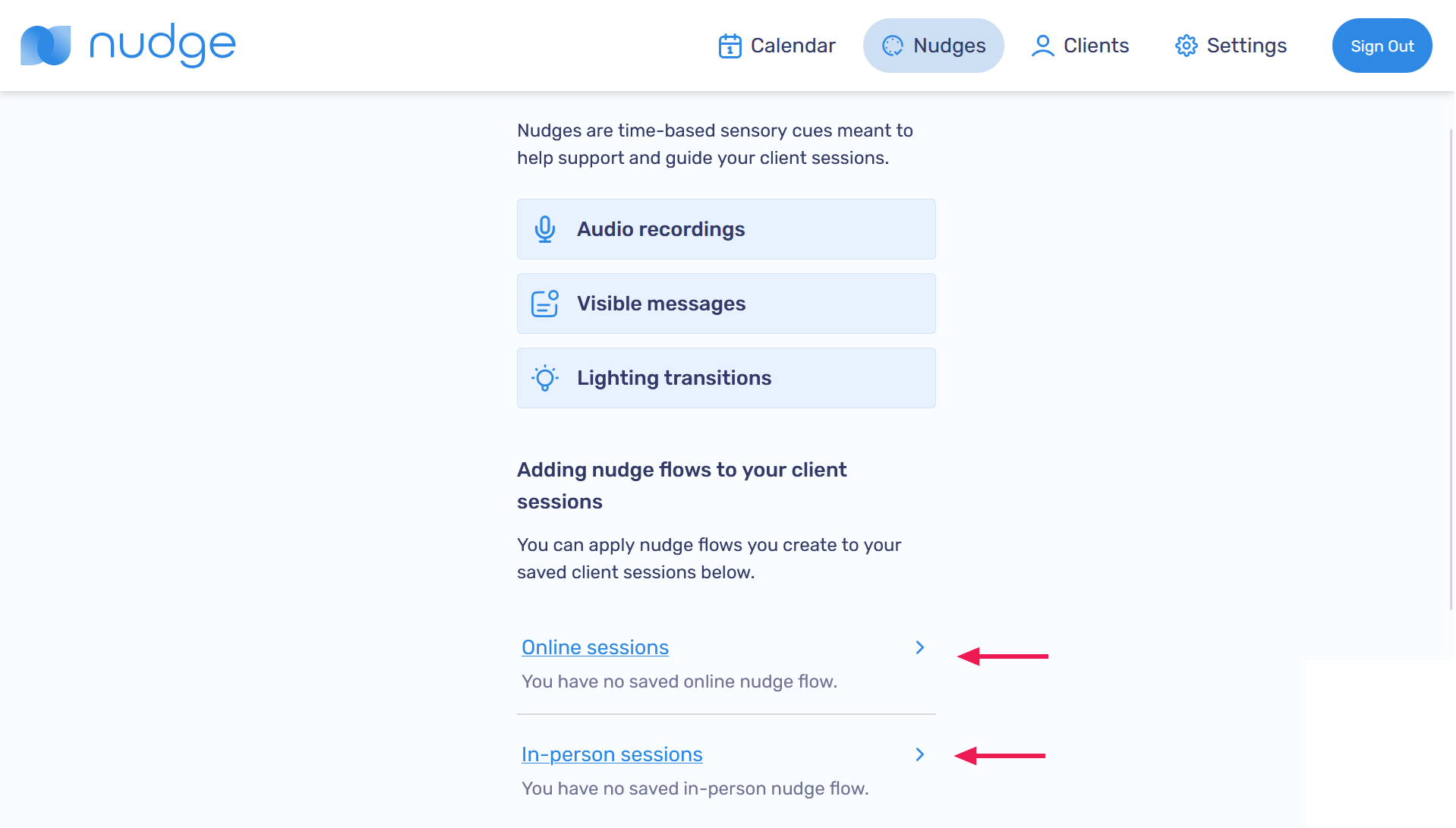
Choose to create either online Nudges or in-person nudges
-
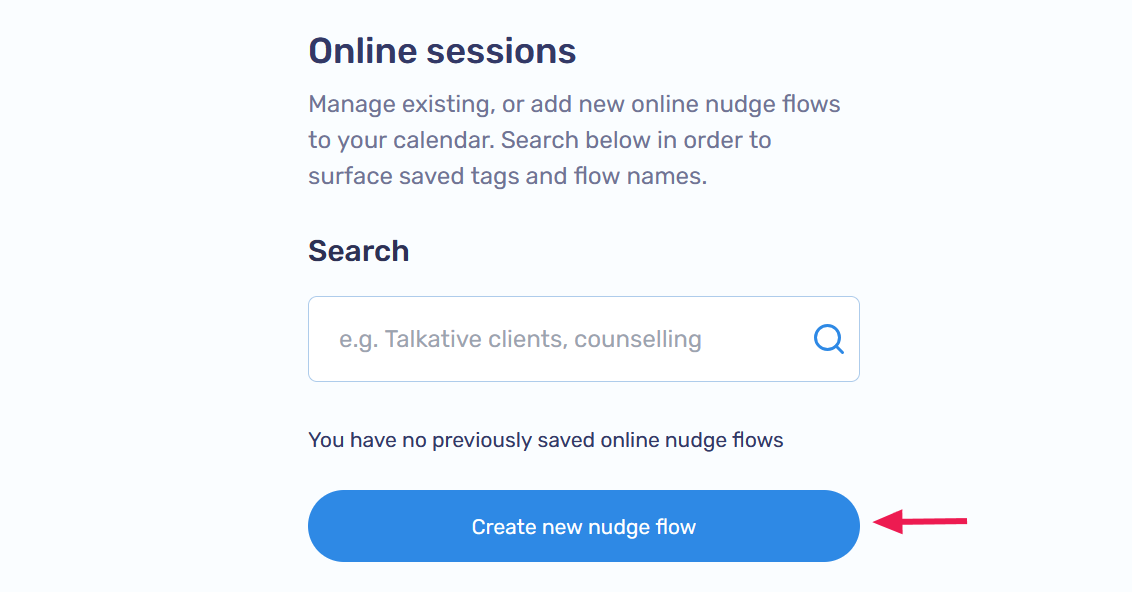
Click Create new nudge flow
Option B: From a Calendar session
-
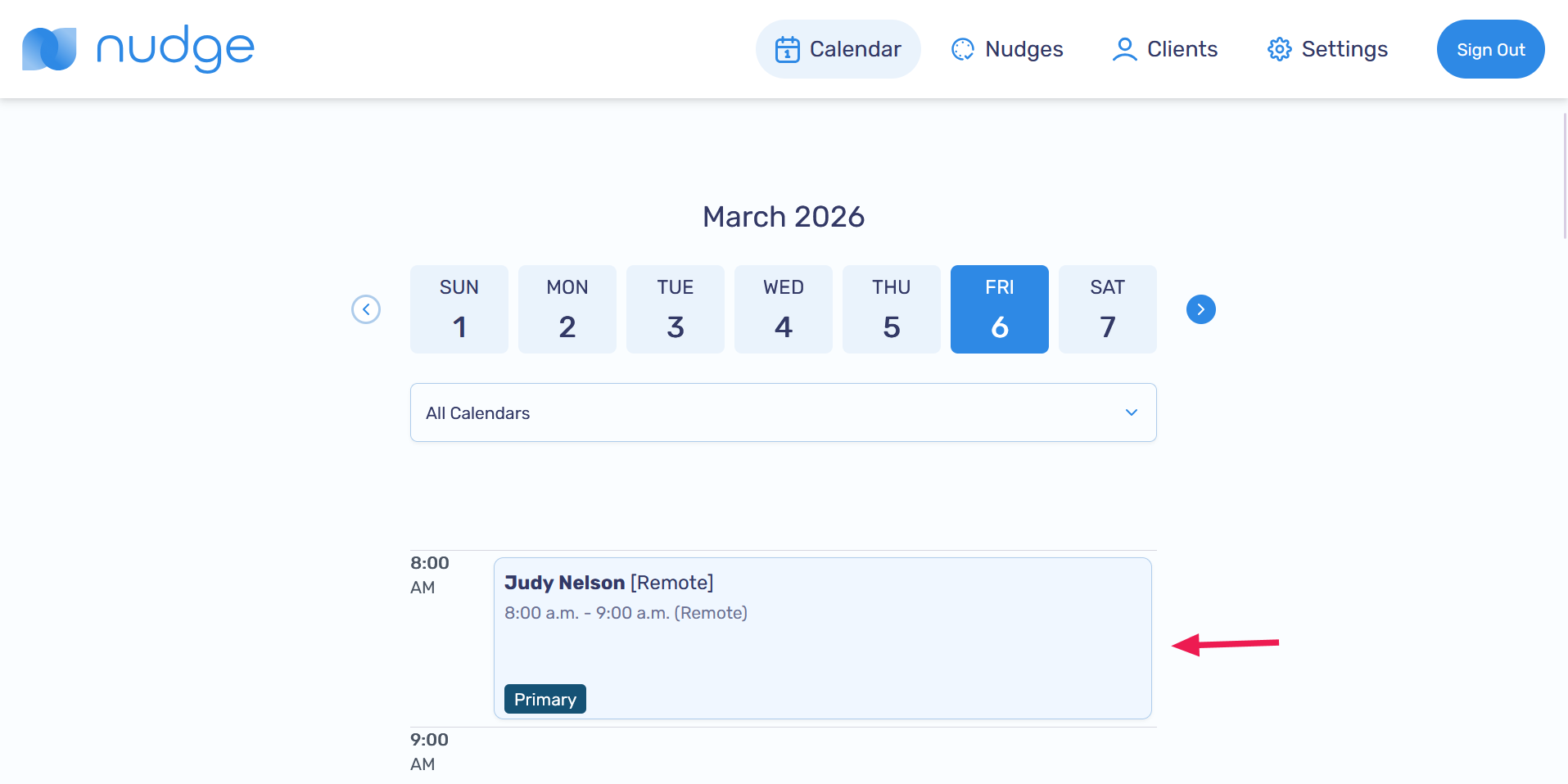
On the Calendar page, select the session you want to create a Nudge Flow for
-
Click Create nudges for this session

Next steps for both options:
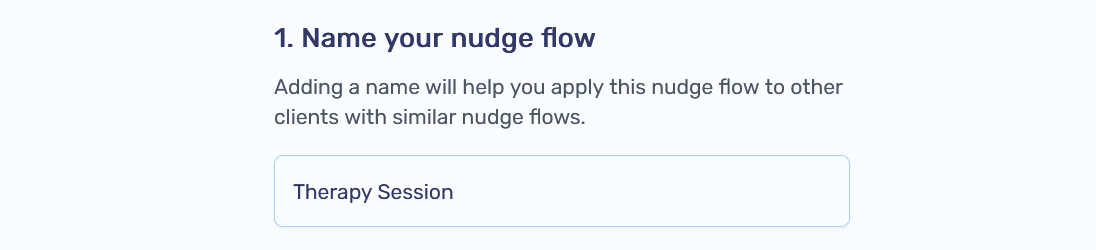
3. Name your Nudge Flow
-
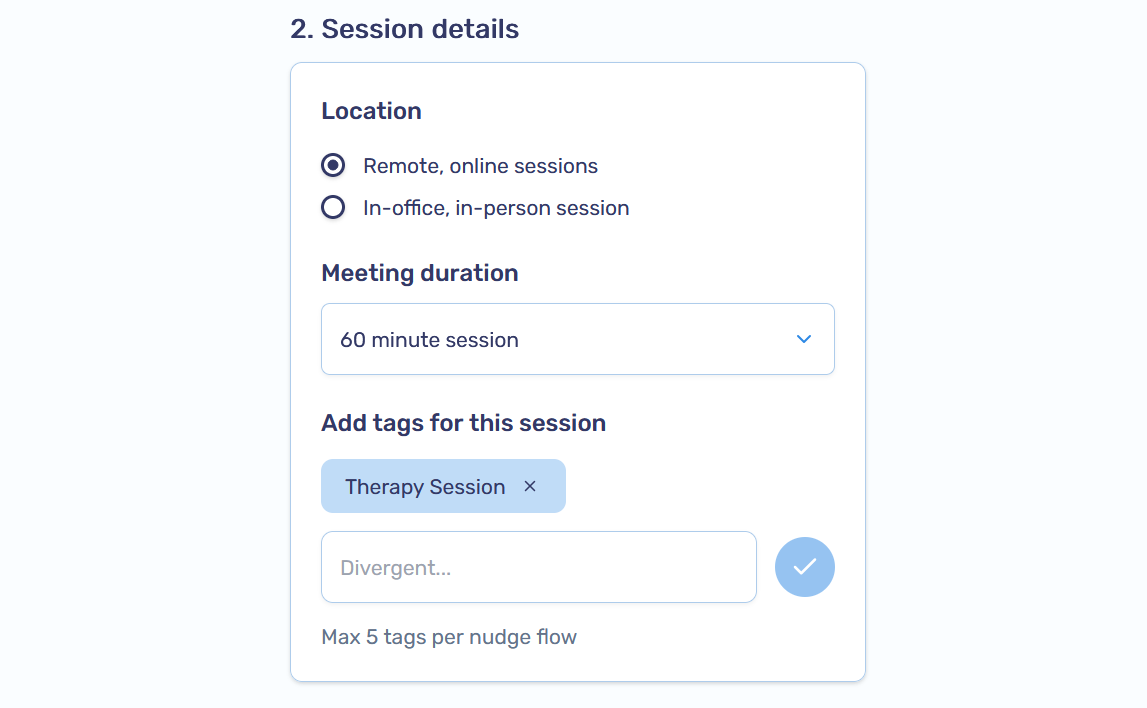
Enter the session details
-
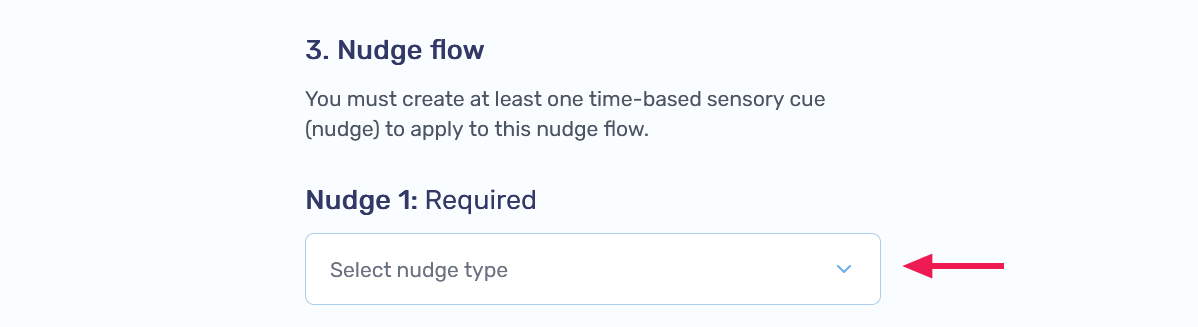
If you have not created at least one time-based sensory cue, you will need to create one. Click on the Select nudge type dropdown
-
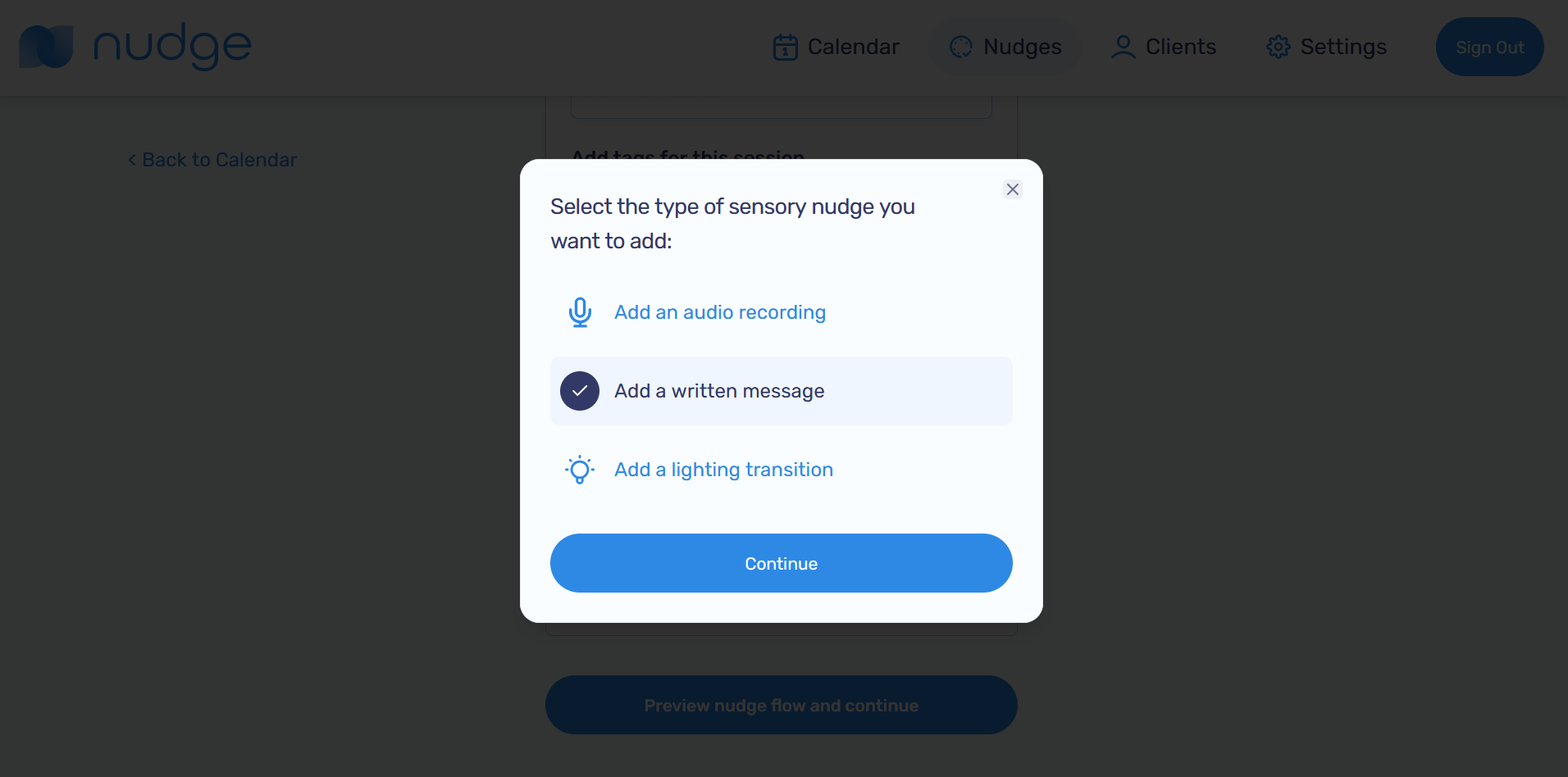
Select a type of sensory cue to add to the nudge flow. For this example we'll create a written message (Learn more about Managing Visible Messages here). To learn more about creating other types of cue refer to the Managing Audio Recordings page or the Managing Lighting Transitions page. Click on Continue to proceed
-
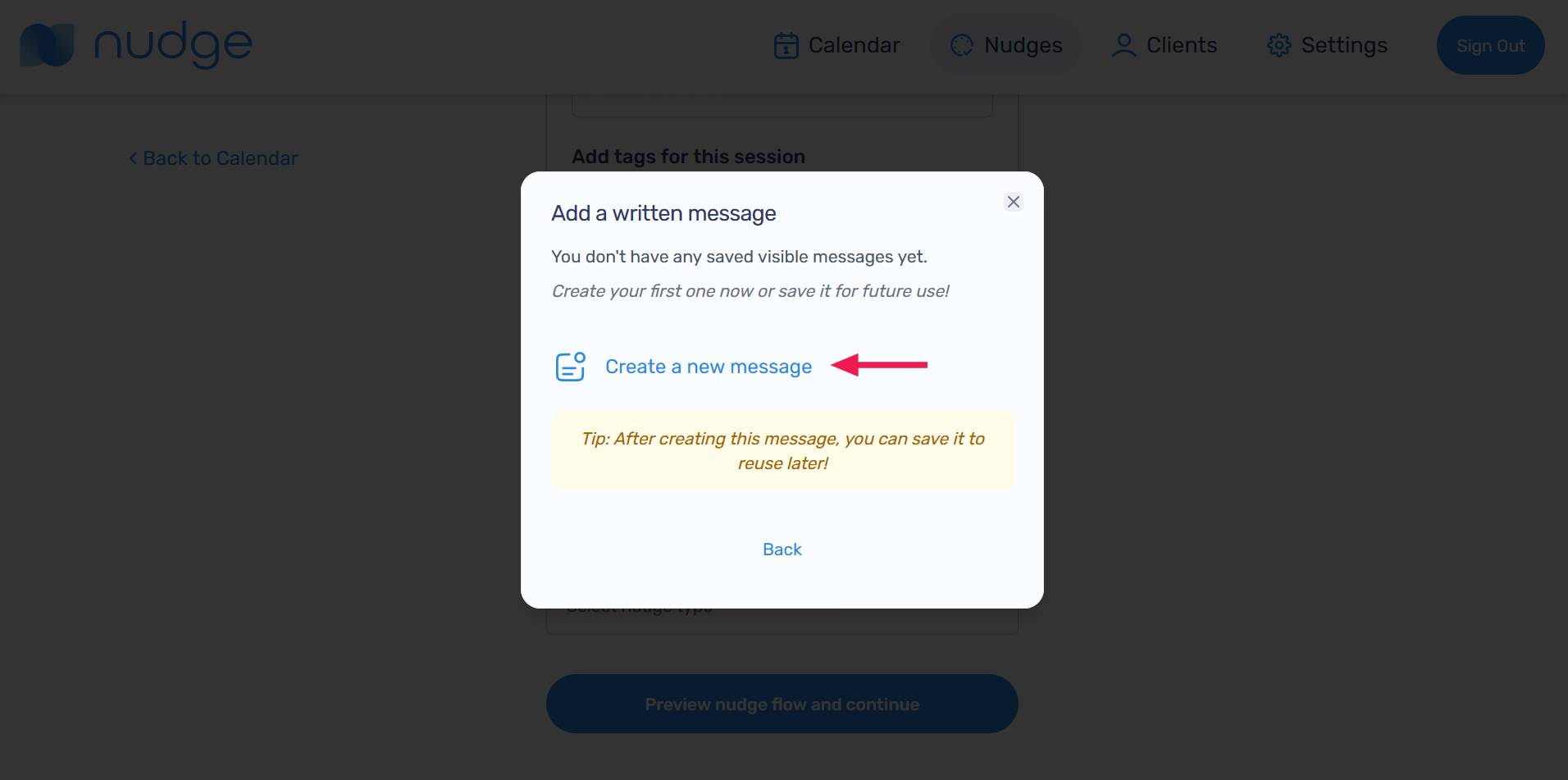
Click on Create a new message to create a new message
-
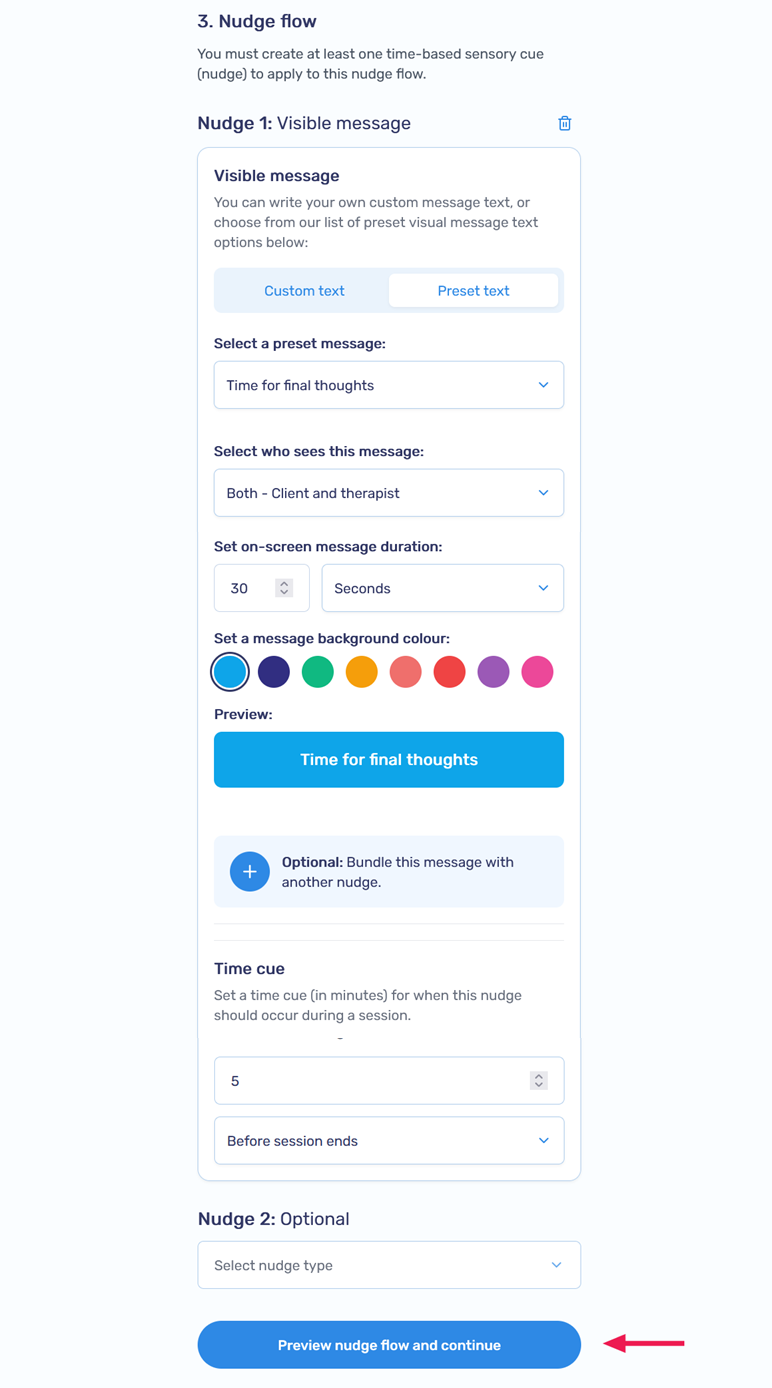
Create a written message cue, click on Preview nudge flow and continue to proceed
-
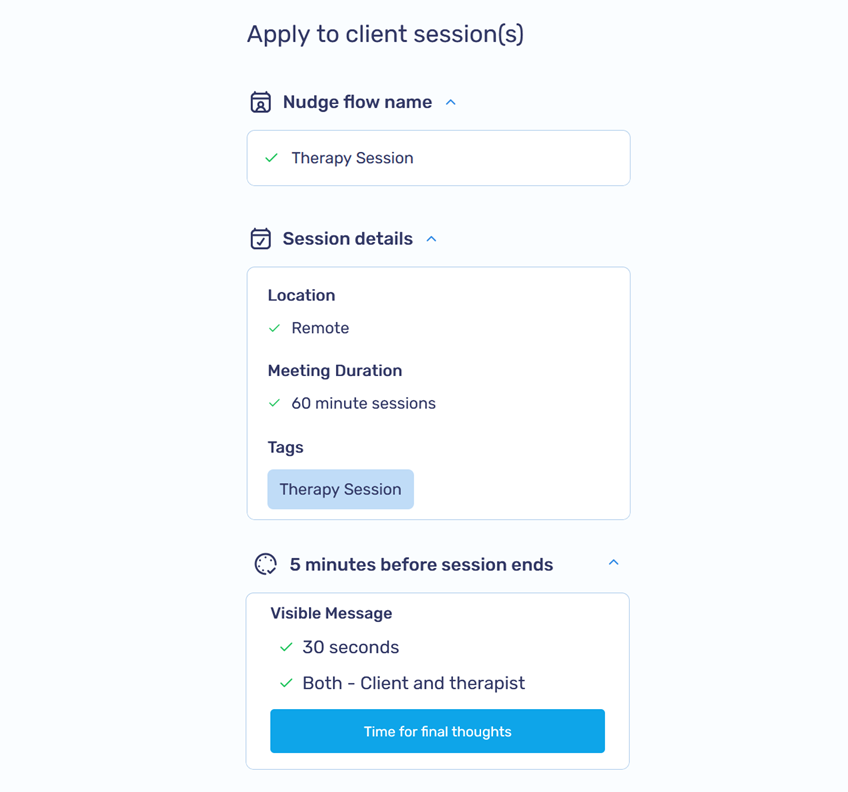
Review your nudge flow configuration
-
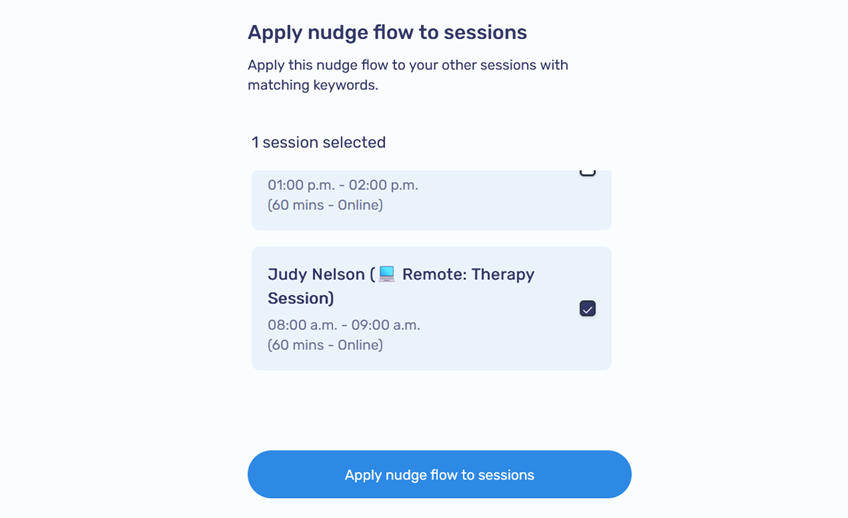
Select one or more sessions to apply the nudge flow to and then click on Apply nudge flow to sessions
-
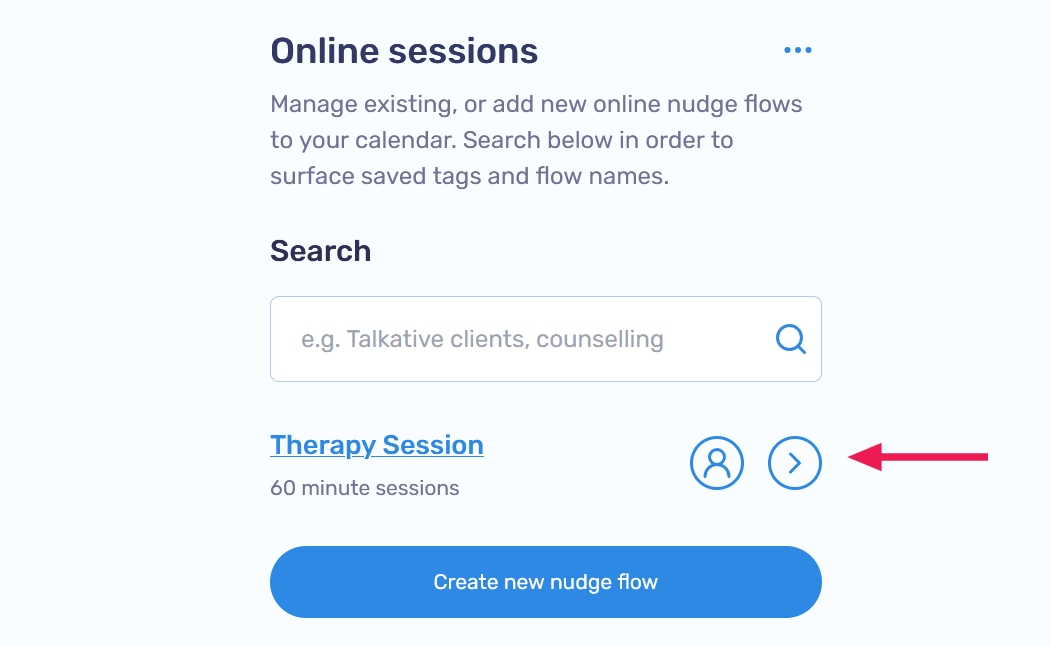
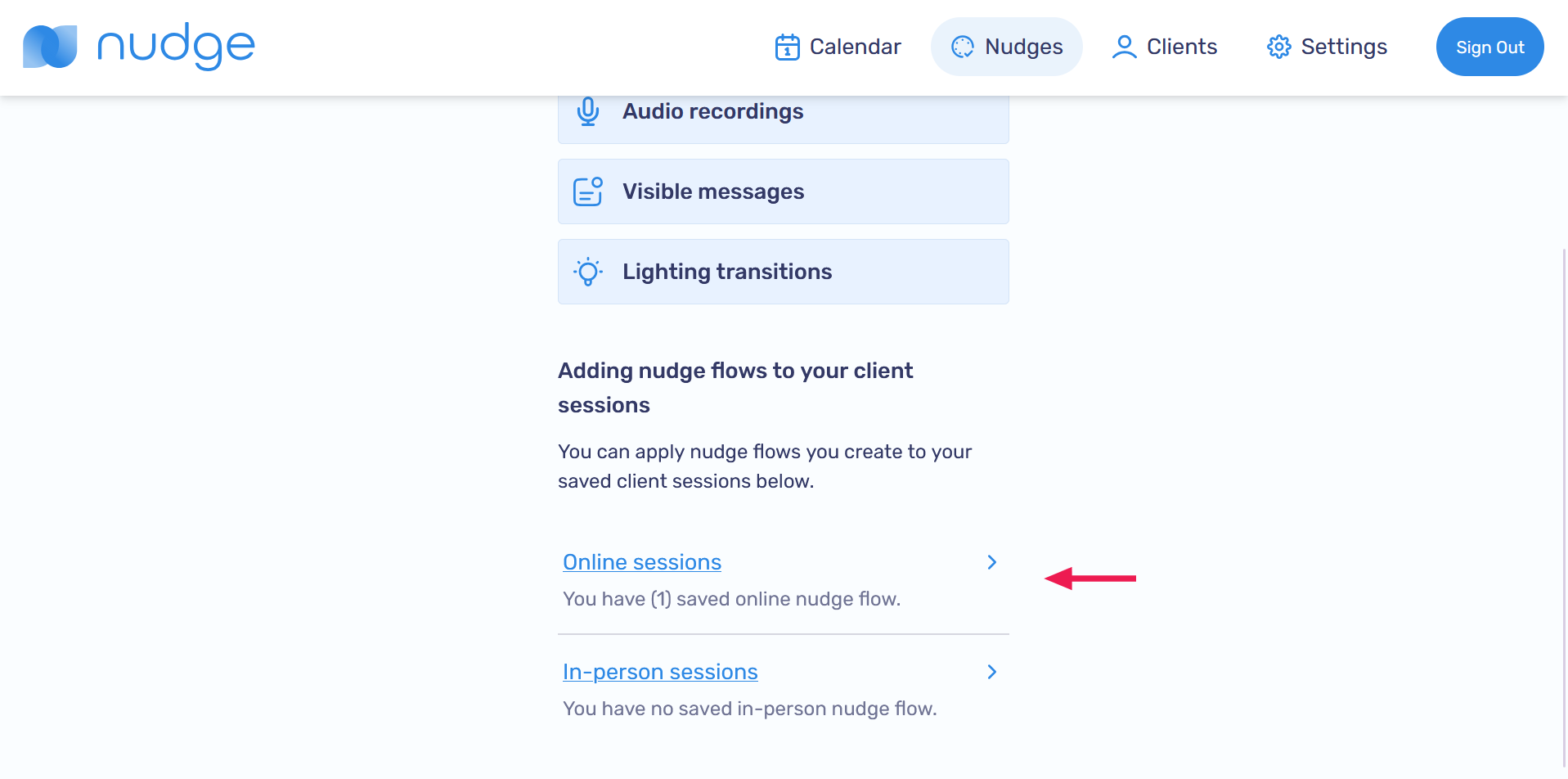
Verify that the nudge flow was created successfully by navigating to the Online sessions or In-person sessions page (depending on where you created the nudge flow)
-
The created nudge flow should appear on the page