Managing Visible Messages
Create Visible Messages
-
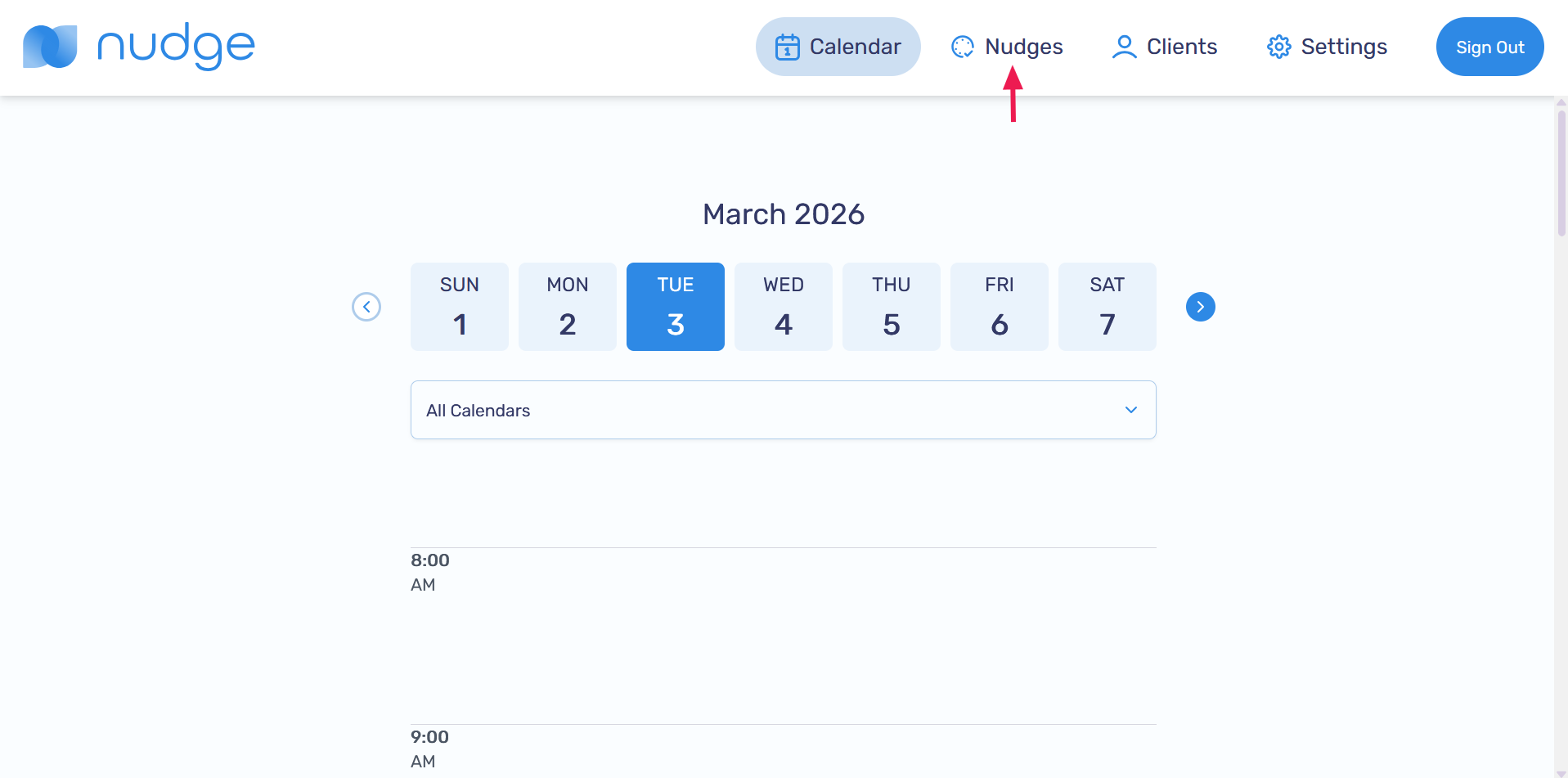
Go to the Nudges page
-
Click on the Visible messags button

-
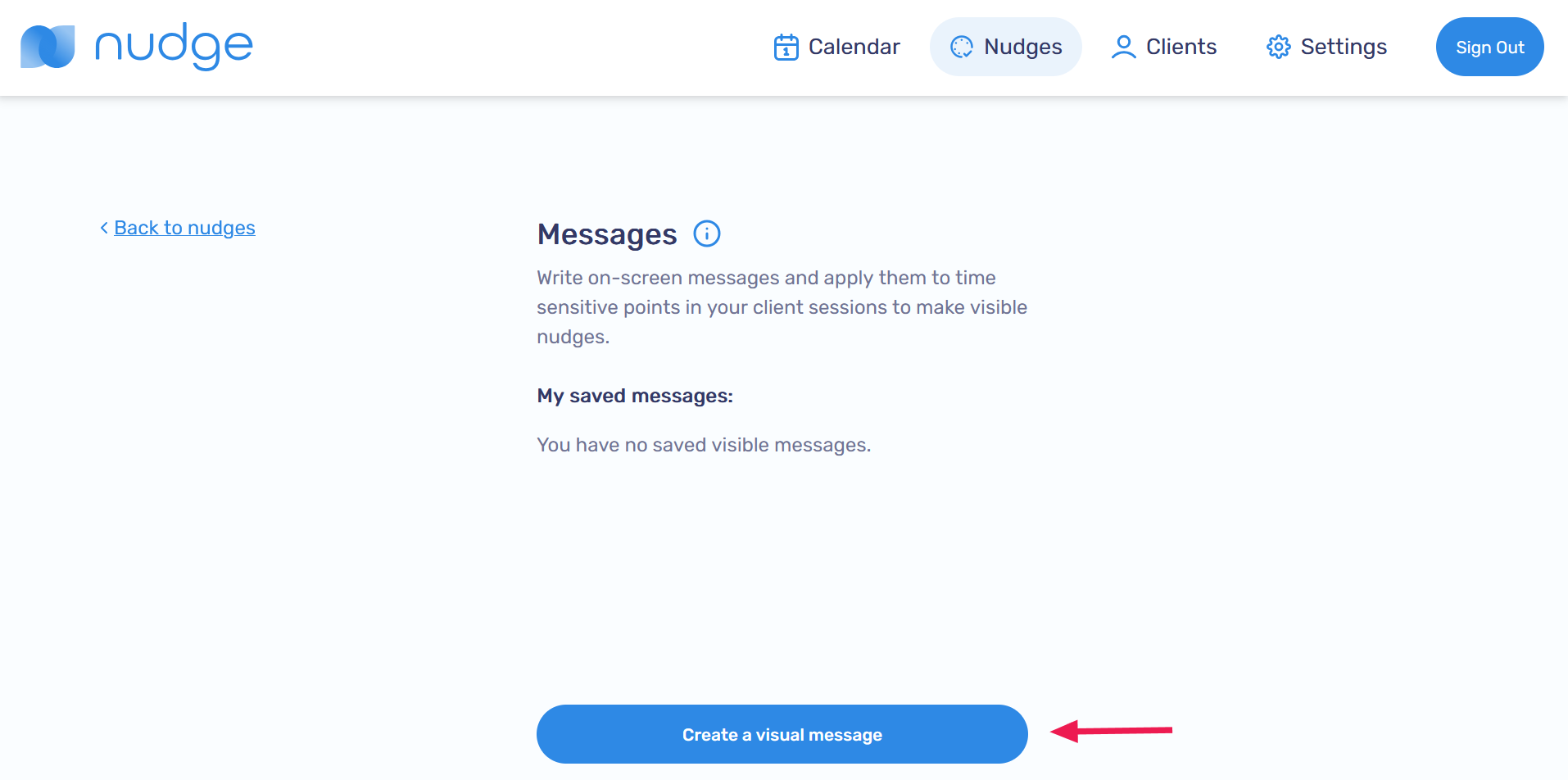
Click on the Create a visual message button
-
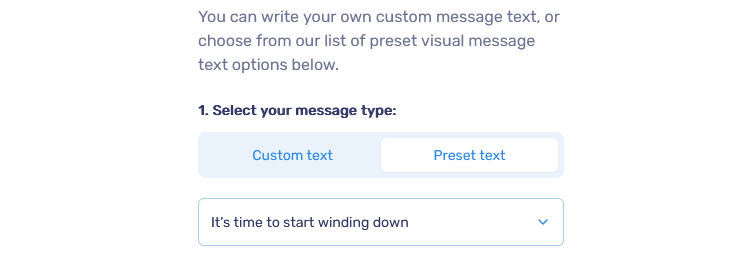
Complete the form by writing your own message or selecting a preset
-
Choose whether to share the message with your client or keep it private

-
Select the background color

-
Select how long you'd like the cue to appear on screen

-
Preview your message, then click Save this visual message to create the cue

-
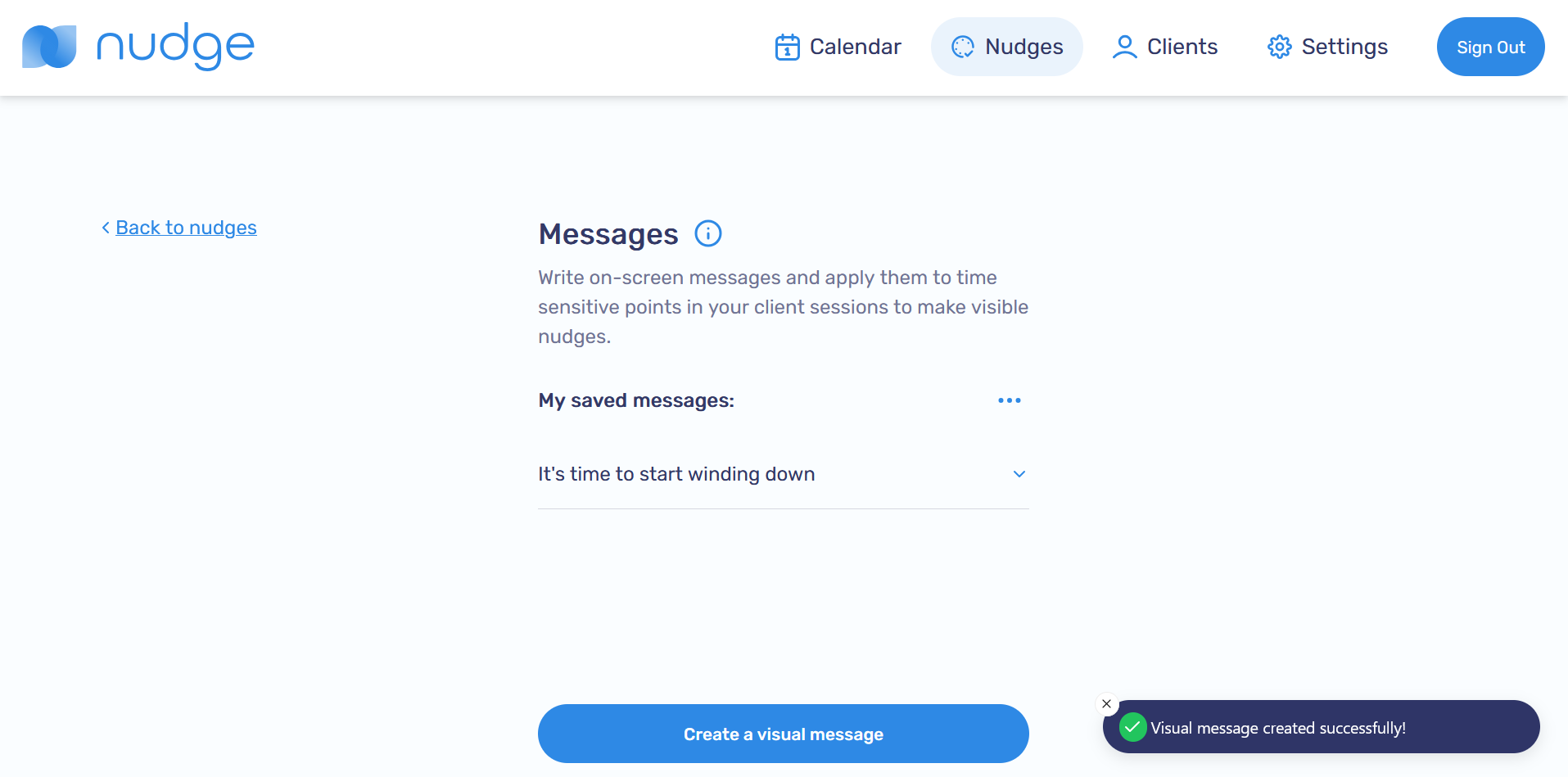
The message will appear in your saved messages
Apply a Visible Message to a client session
-
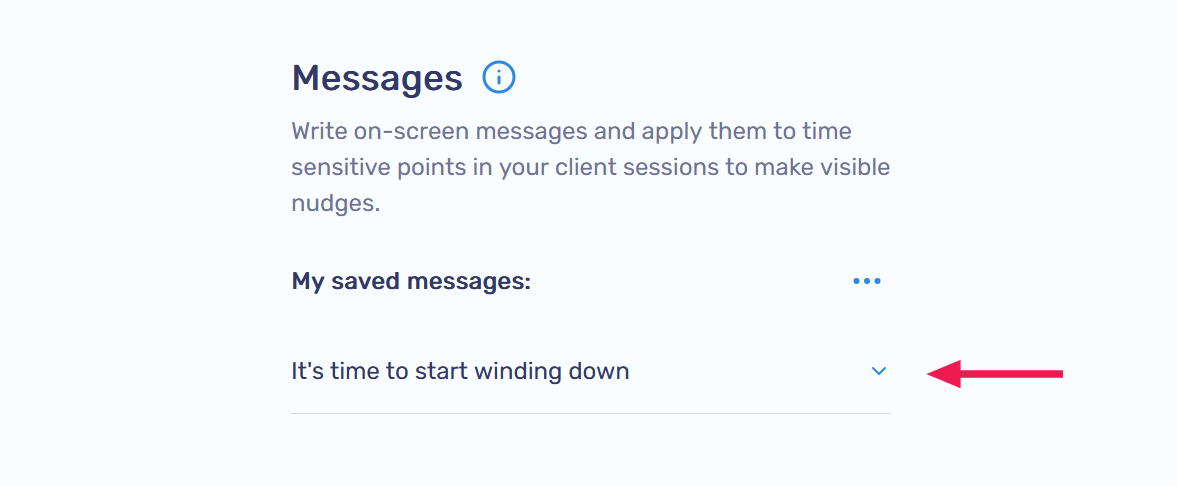
On the Nudges page, expand the saved message you want to use
-
Click on the Apply to a client session button

-
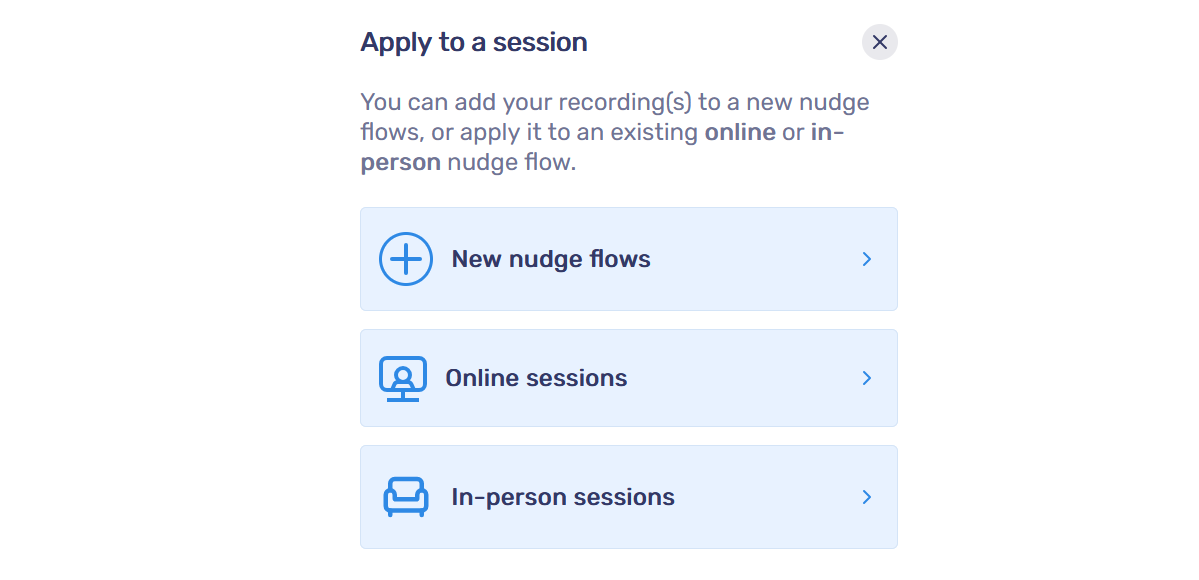
Choose to create a new nudge flow, or add your message cue to an online or in-person session. Click on Online sessions or In-person sessions
-
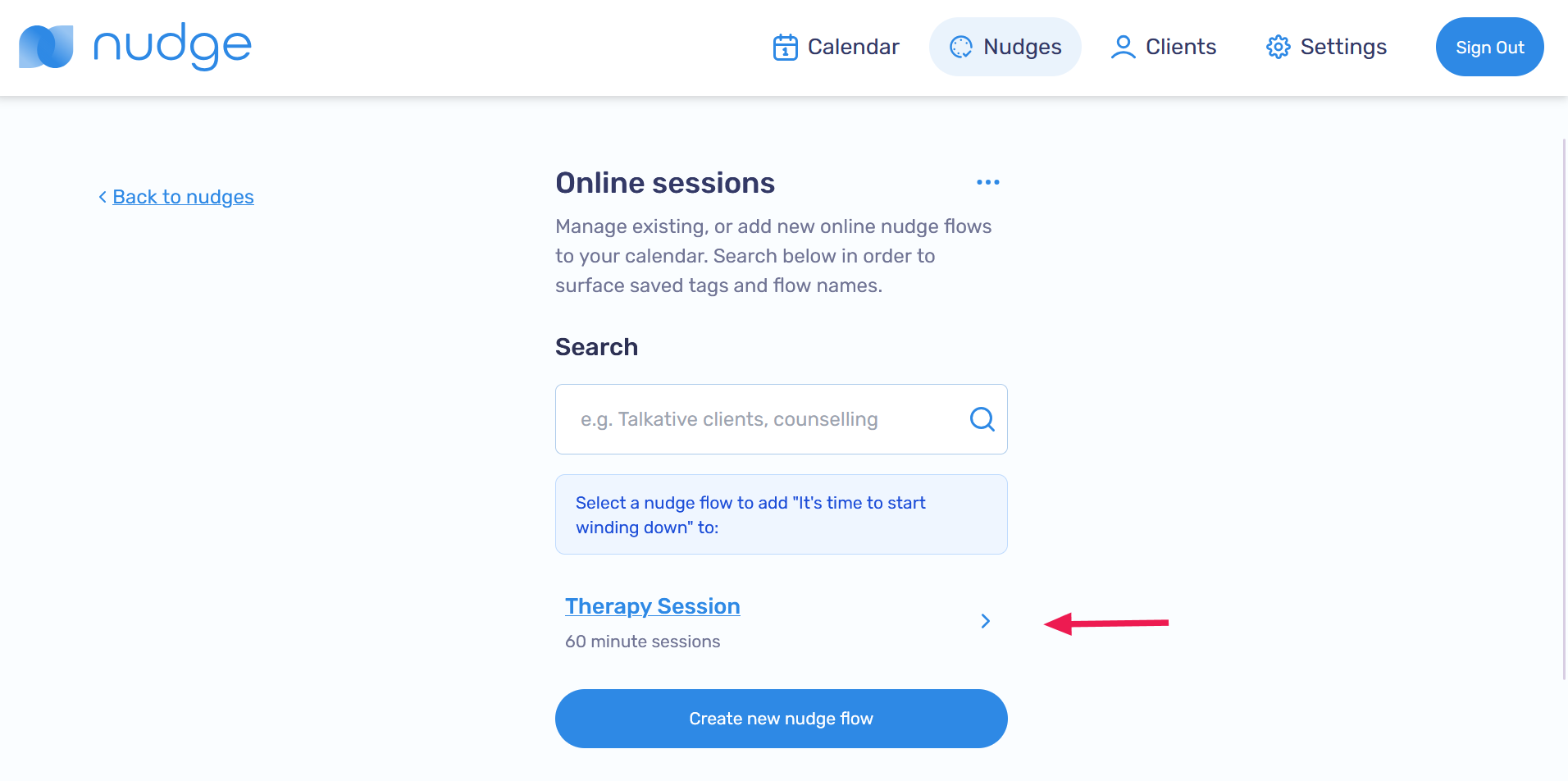
Select the session you want to add the visible message to
-
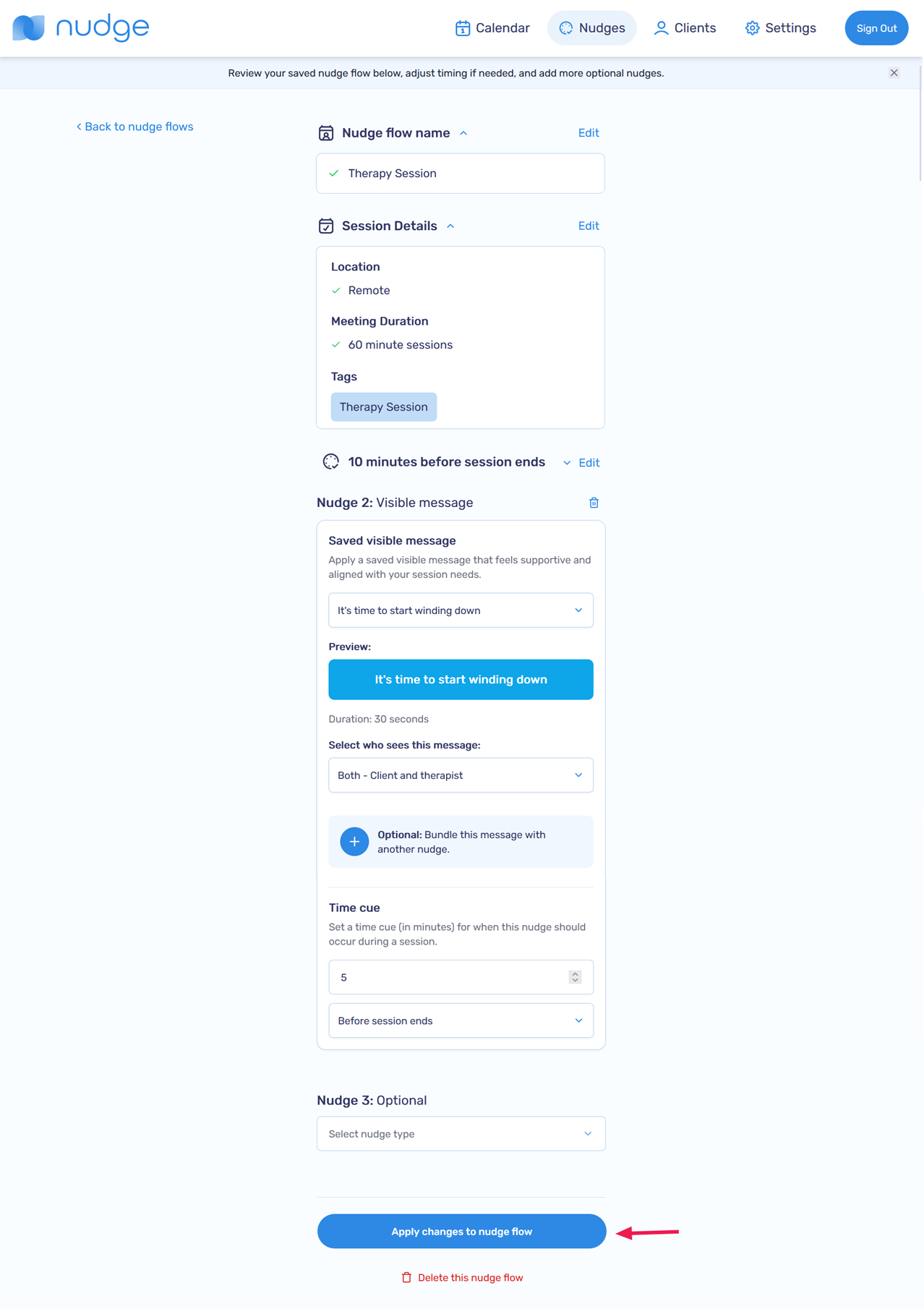
Click on the Apply changes to nudge flow button
Edit a Visible Message
-
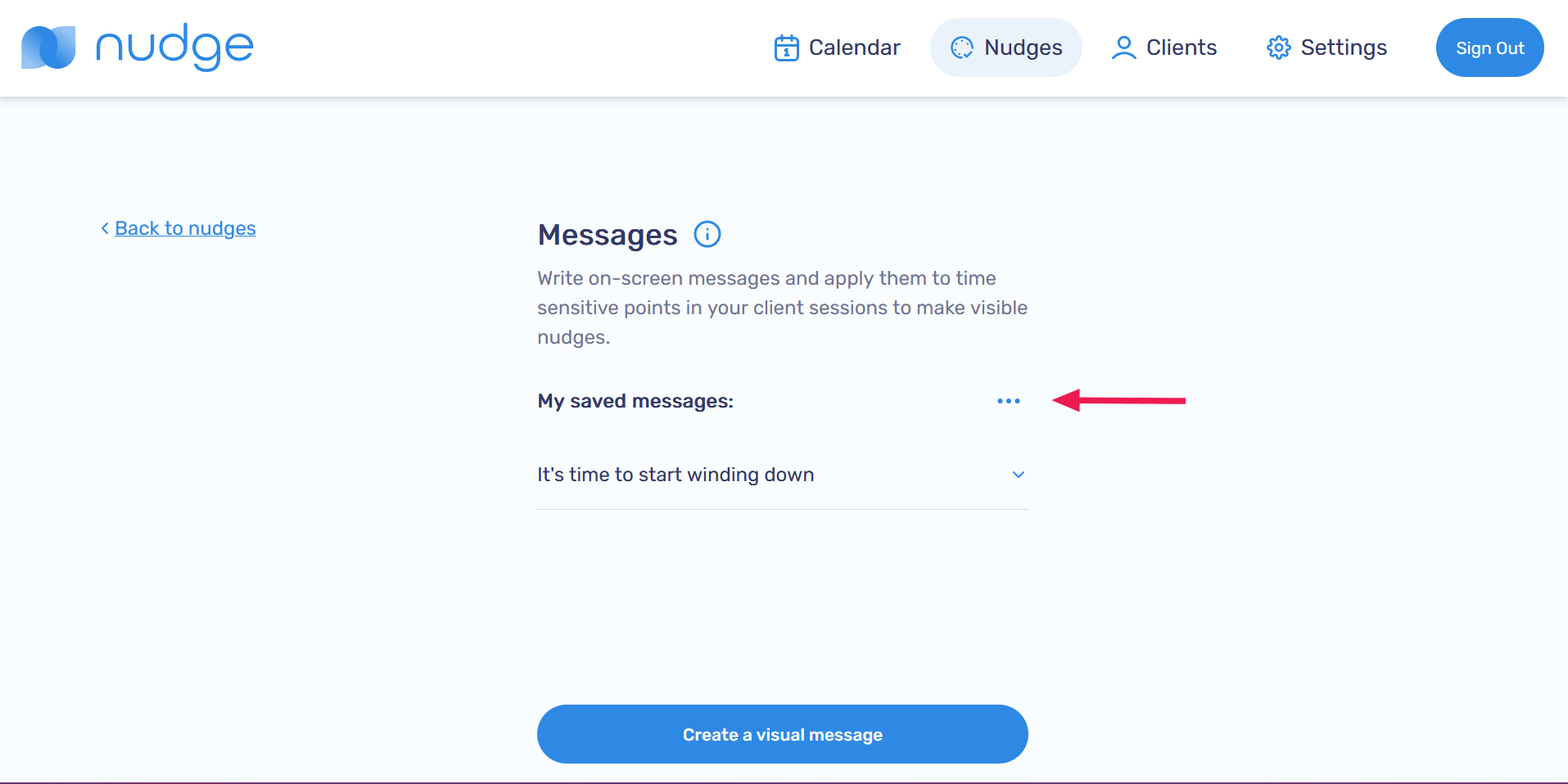
Click on the ... next to My saved messages
-
Click on Edit visible messages

-
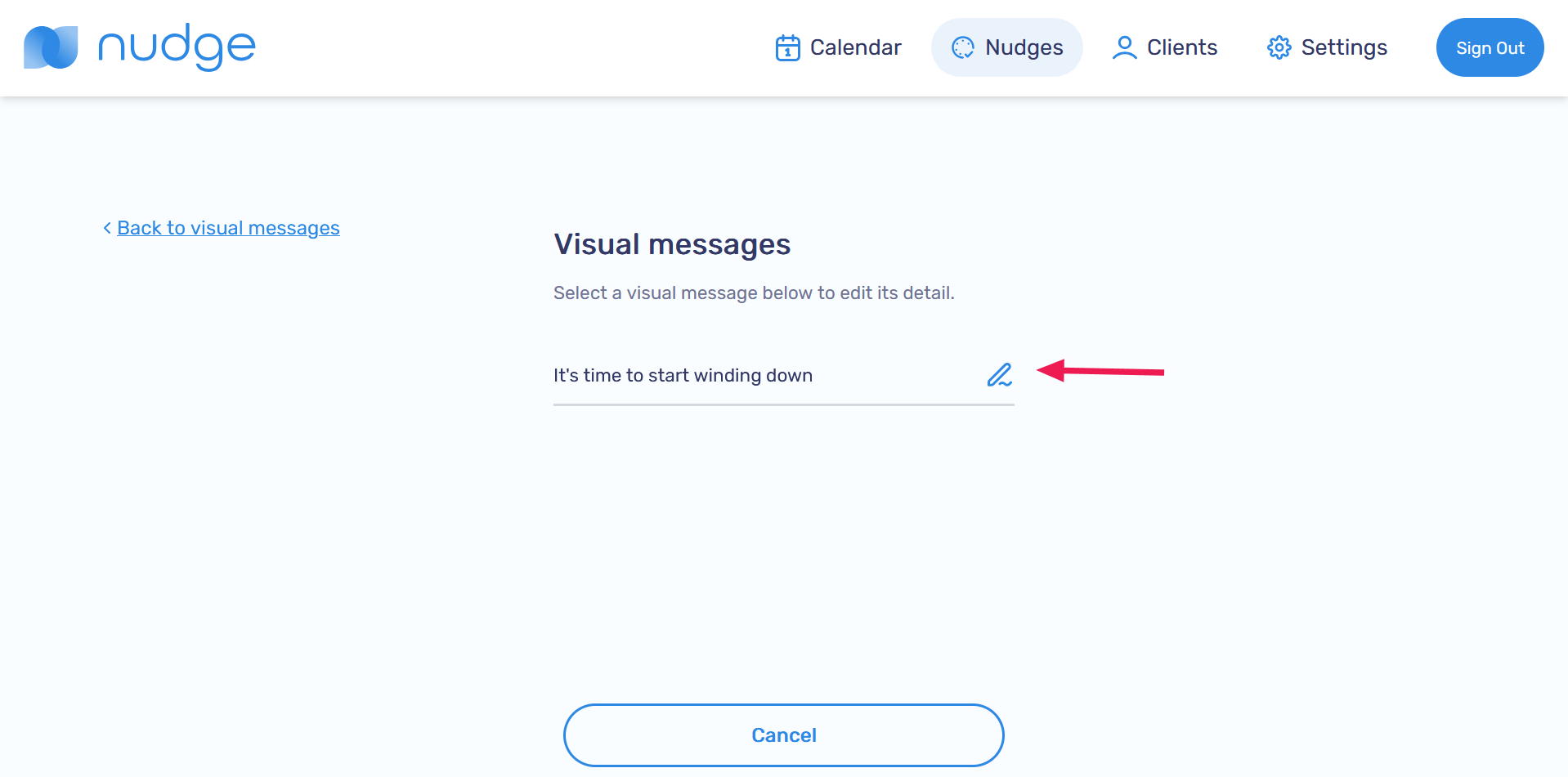
Click on the
 icon
icon
-
Make your edits in the pop-up menu, then click Update this visual message to save

-
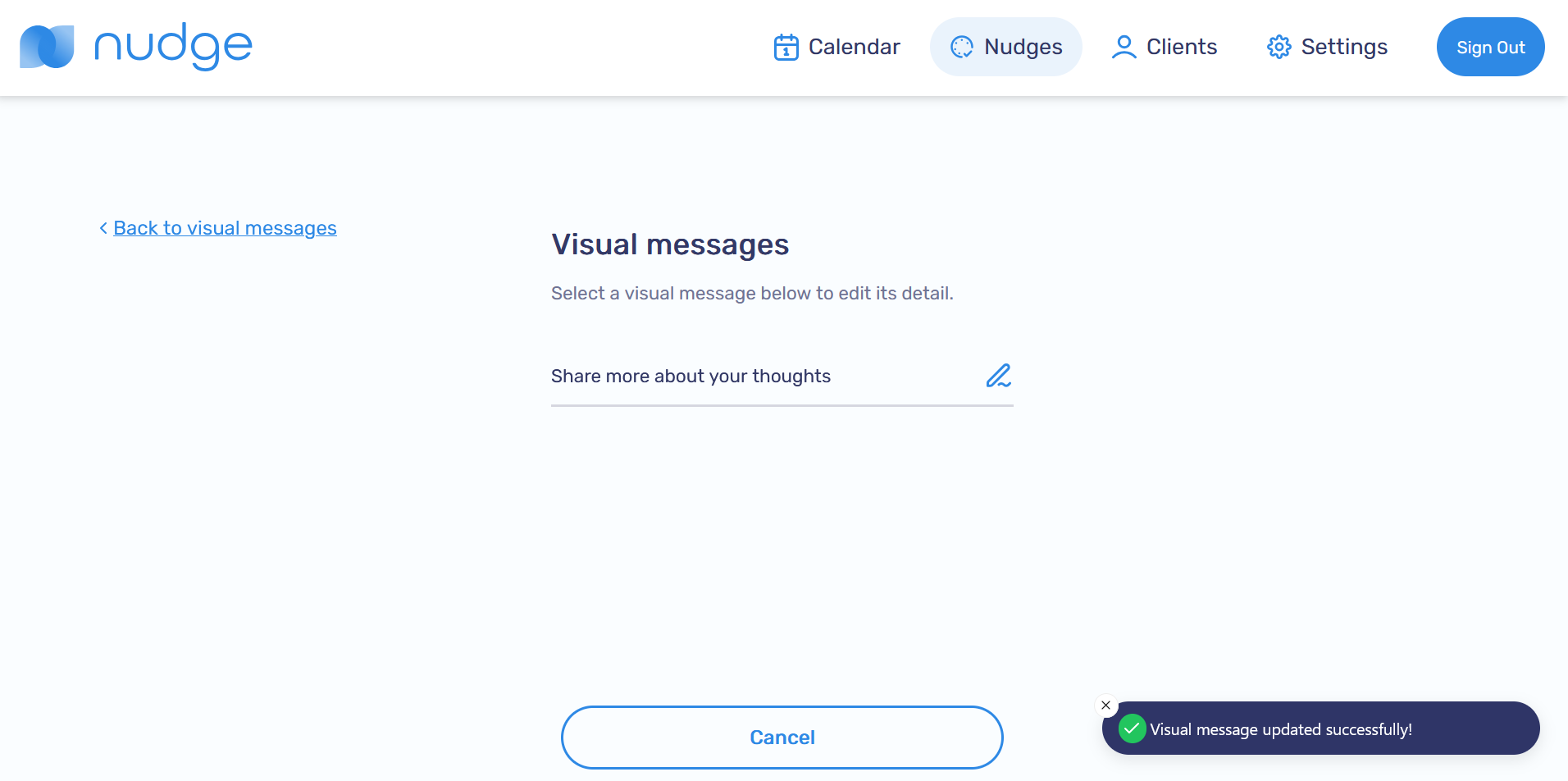
The changes will be reflected after saving
Delete a Visible Message
-
Click on the ... next to My saved messages

-
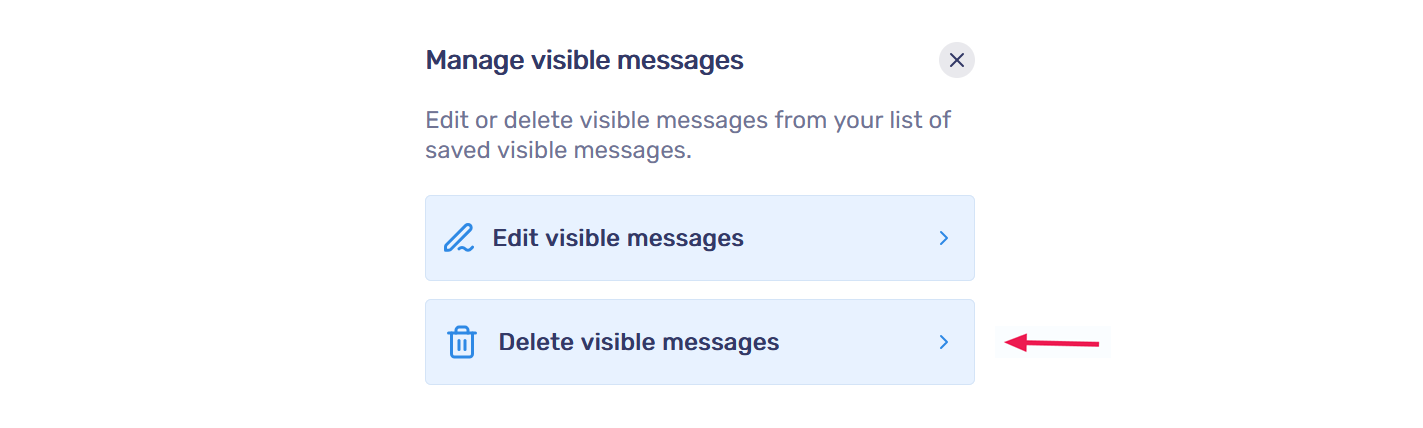
Click on Delete visible messages
-
Select the messages you want to delete, then click Delete visual message(s)

-
The changes will be reflected after saving