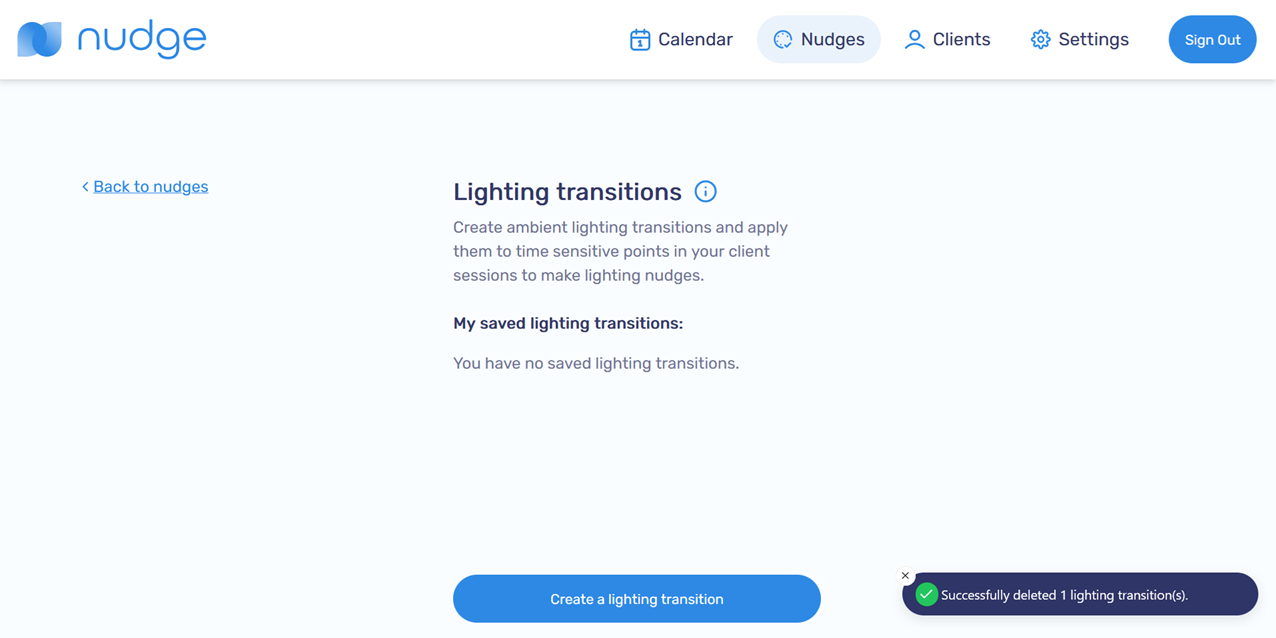
Managing Lighting Transitions
Create a Lighting Transition
-
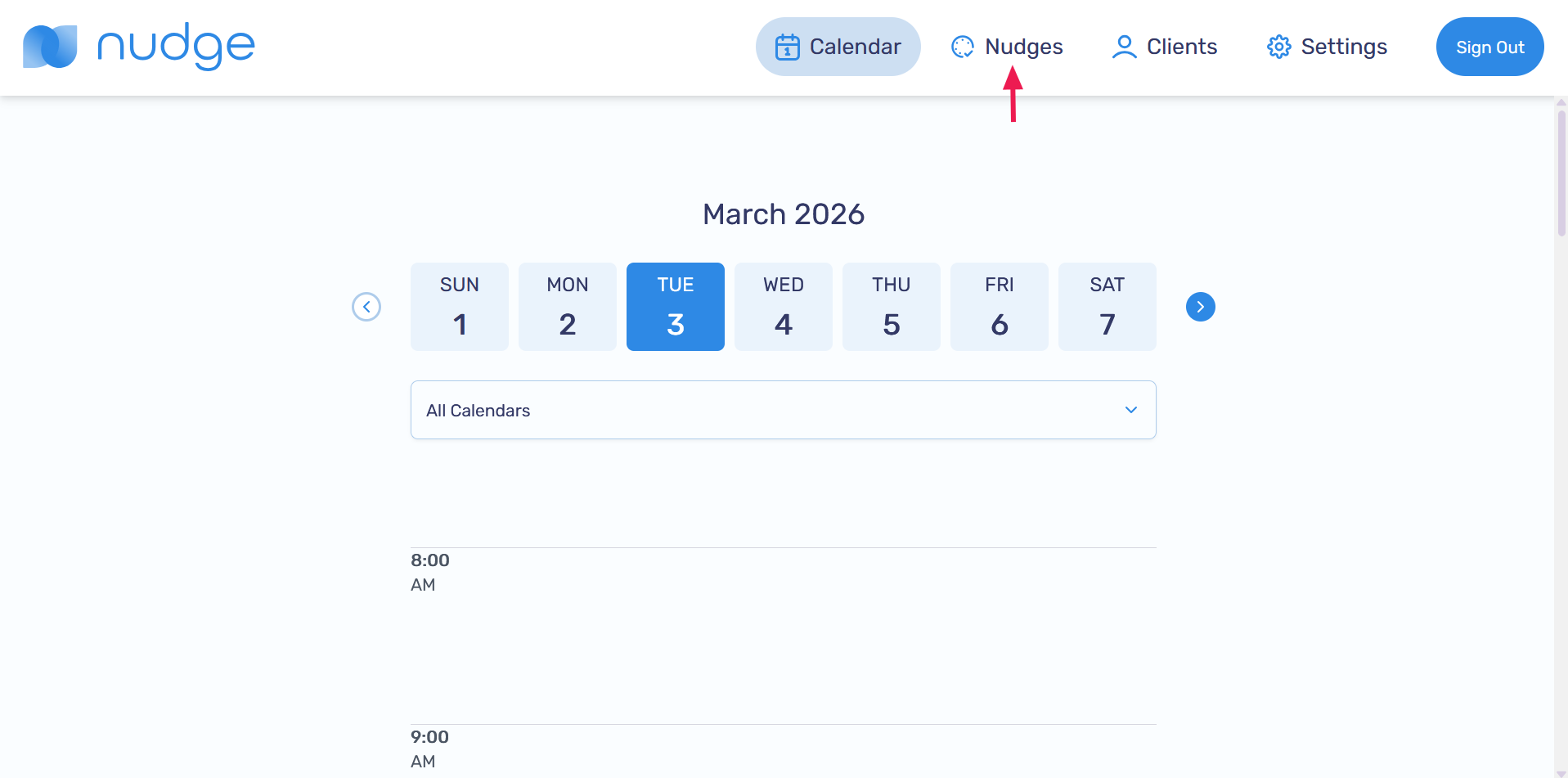
Go to the Nudges page
-
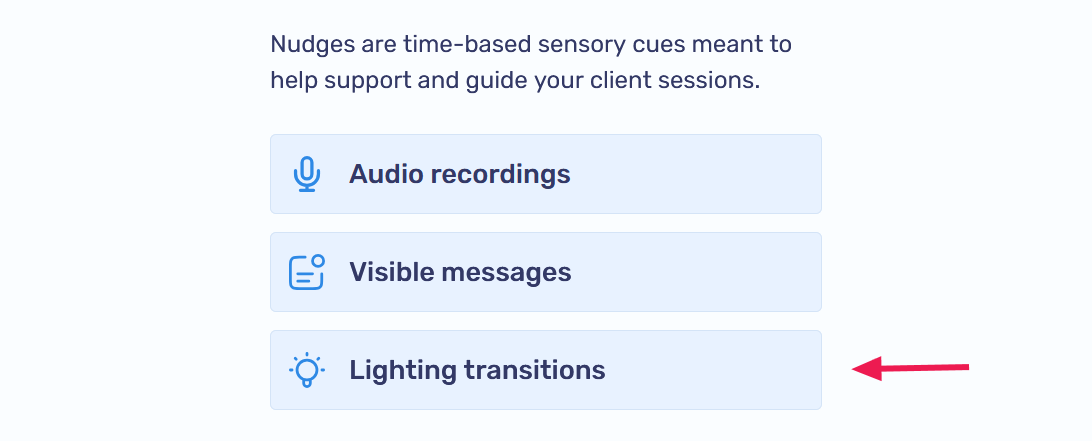
Click on Lighting transitions
-
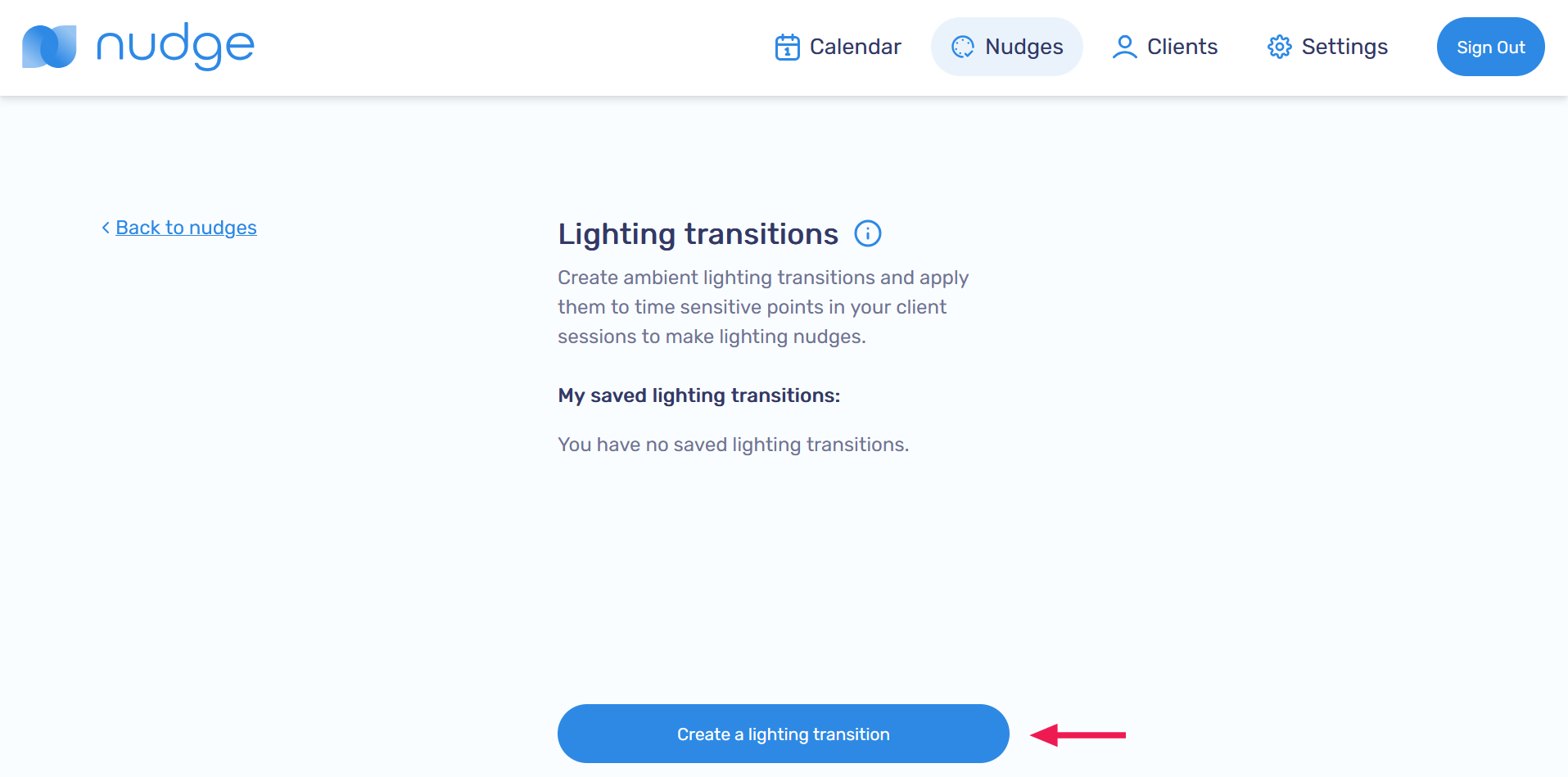
Click on the Create a lighting transition button
-
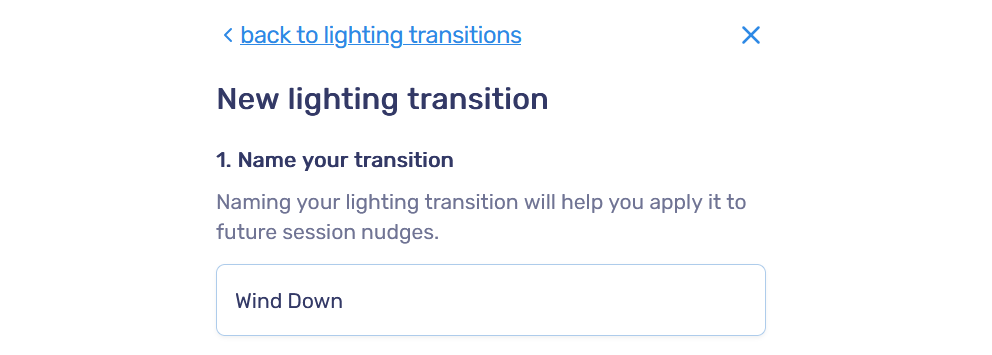
Enter a name for your lighting transition
-
Select the color you would like the bulb to turn to and the level of brightness. When you're ready to create the lighting transition, click Save this lighting transition

-
Your lighting transition will appear in the My saved lighting transitions section

Apply a Lighting Transition to a client session
-
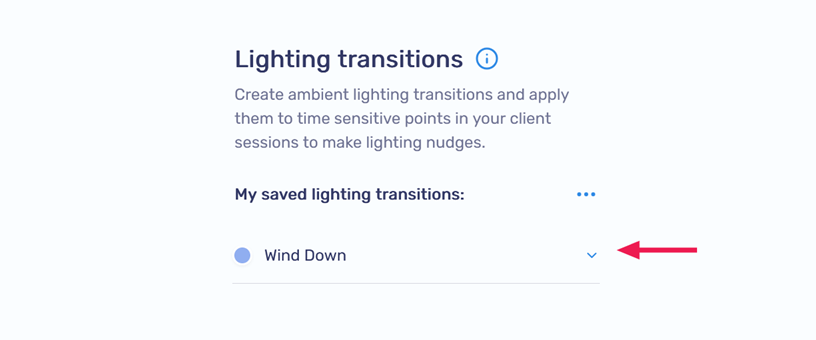
On the Nudges page, expand the lighting transition you want to use
-
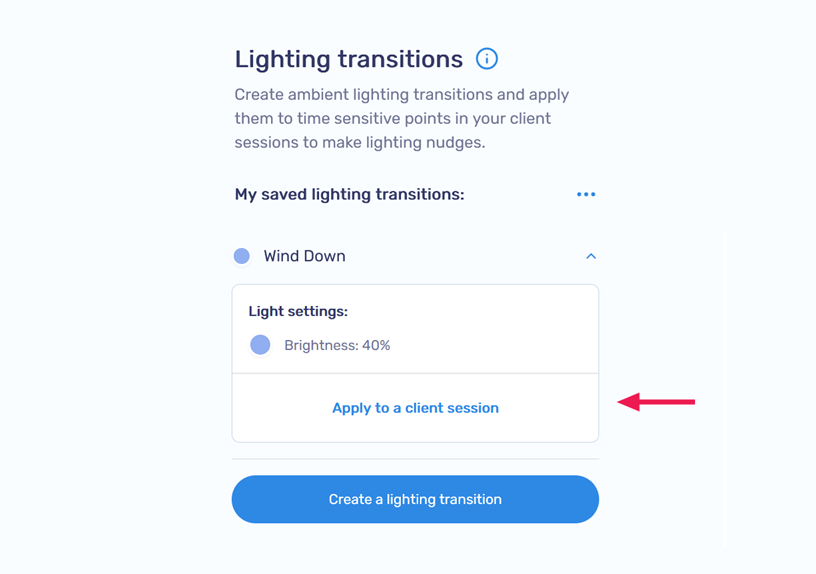
Click Apply to a client session
-
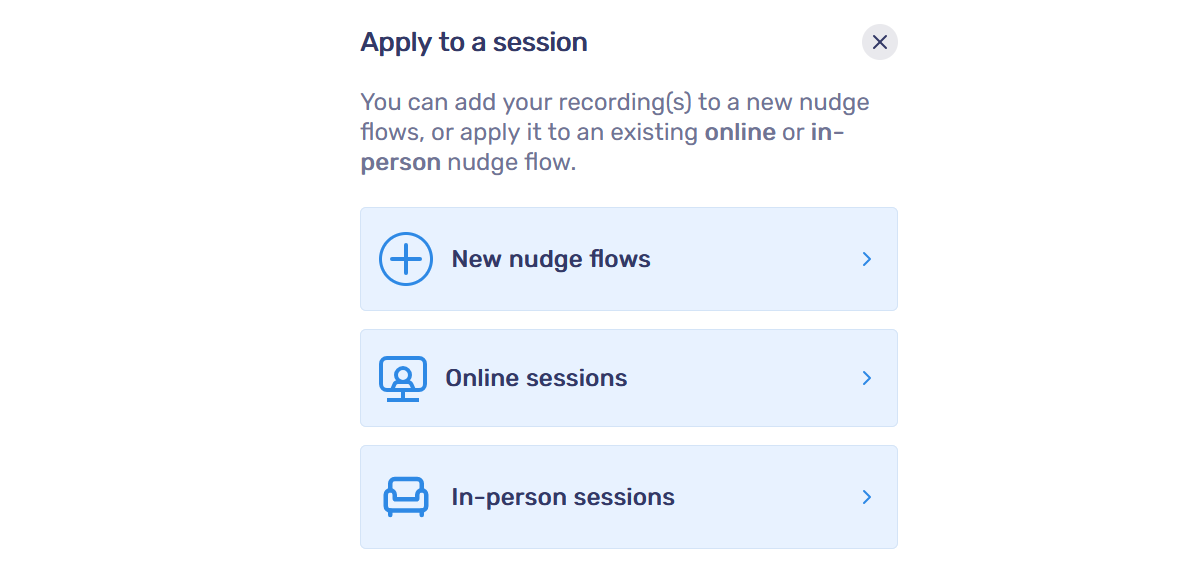
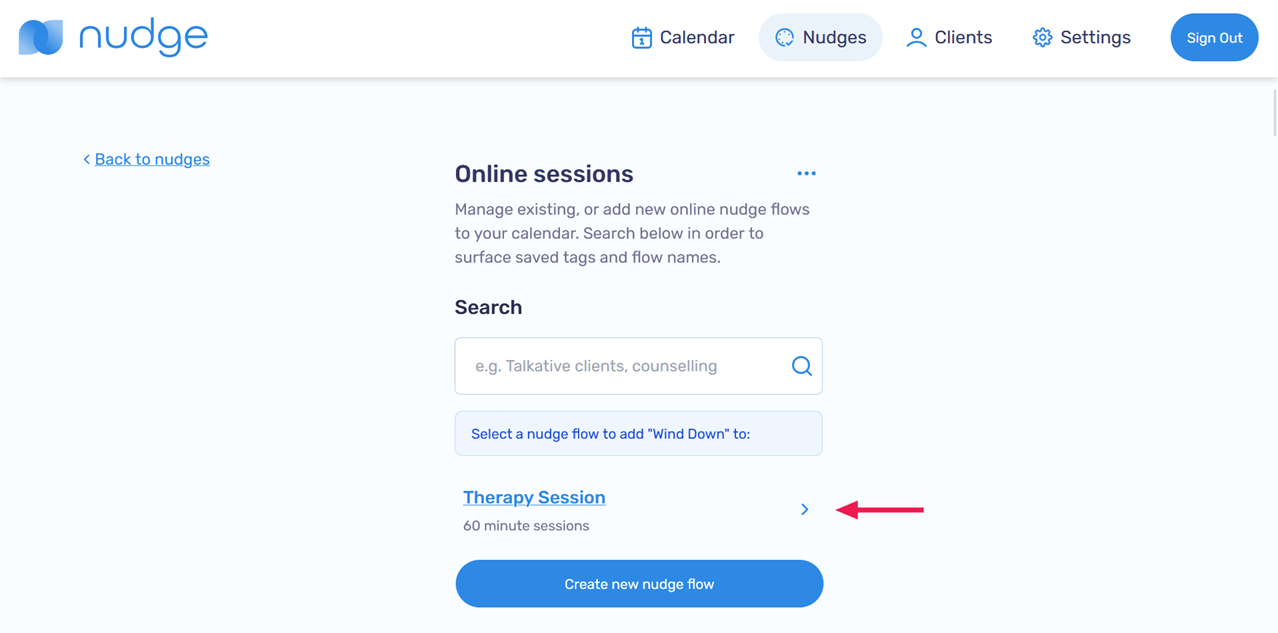
Choose to create a new nudge flow, or add your audio cue to an online or in-person session. This section will demonstrate applying the cue to Online sessions or In-person sessions
-
Select the session you want to add the lighting transition to
-
Click Apply changes to nudge flow

Edit a Lighting Transition
-
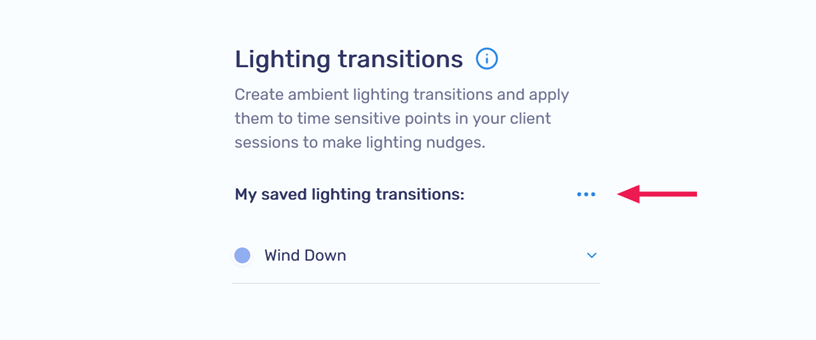
Click the ... next to My saved lighting transitions
-
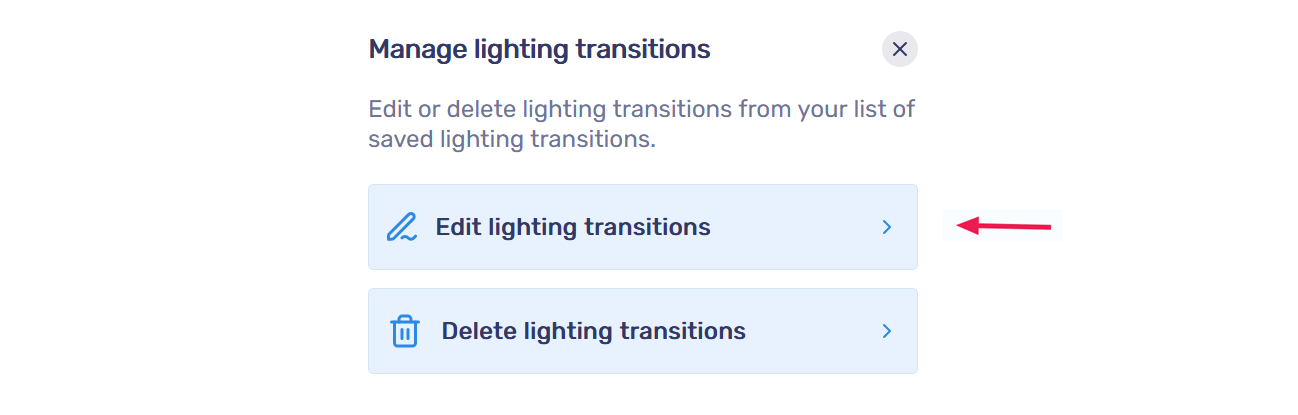
Click Edit lighting transitions
-
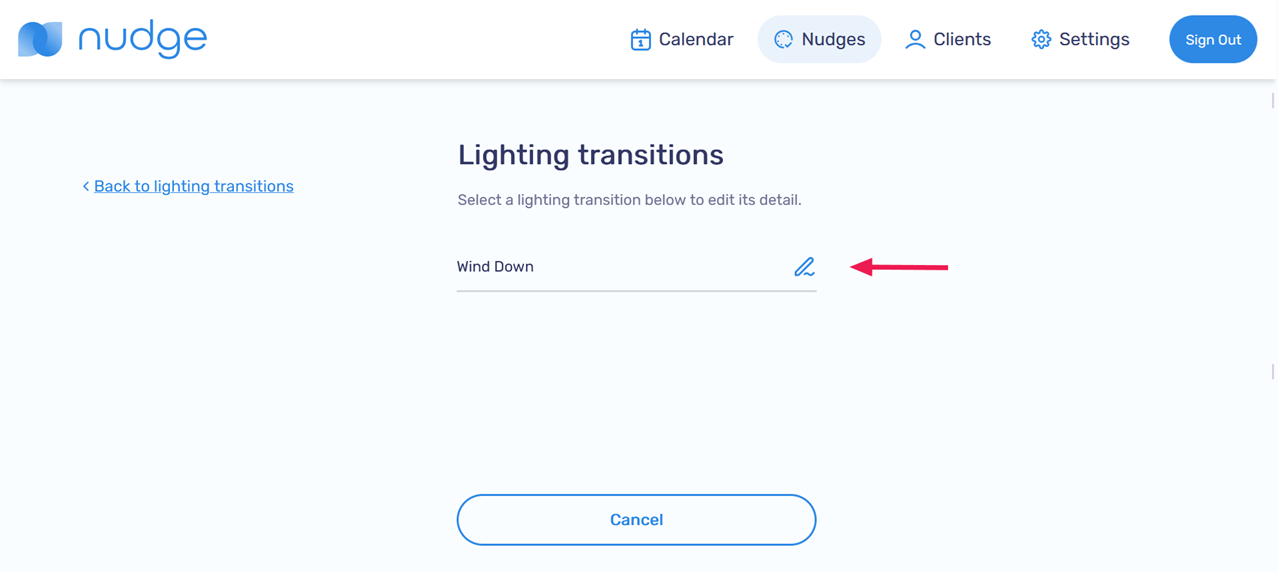
Click on the
 icon
icon
-
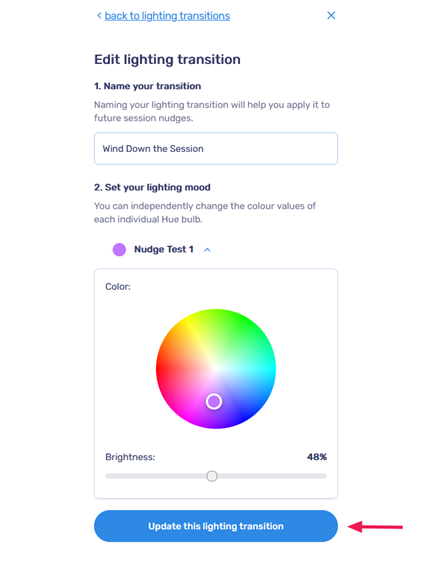
Make your edits in the pop-up menu, then click Update this lighting transition to save
-
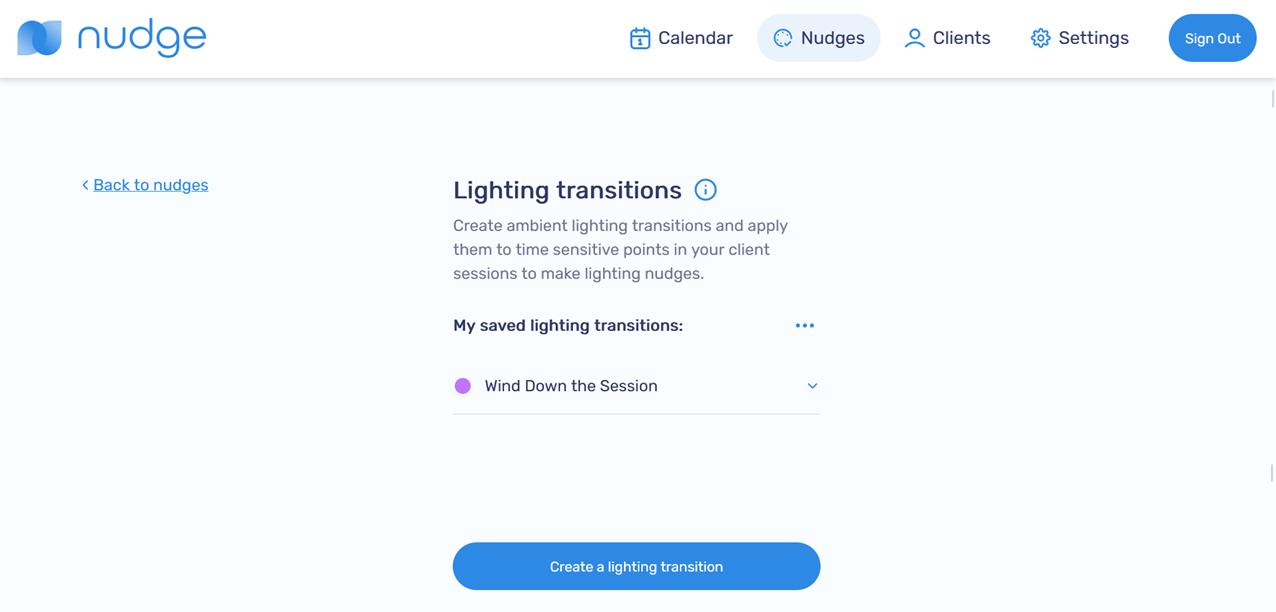
Your changes will be reflected after saving
Delete a Lighting Transition
-
Click the ... next to My saved lighting transitions
-
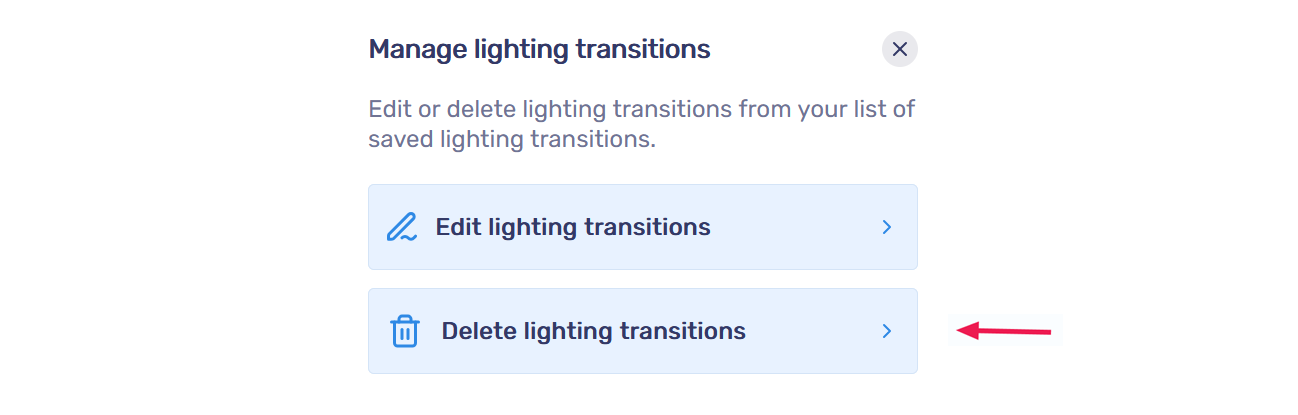
Click Delete lighting transitions
-
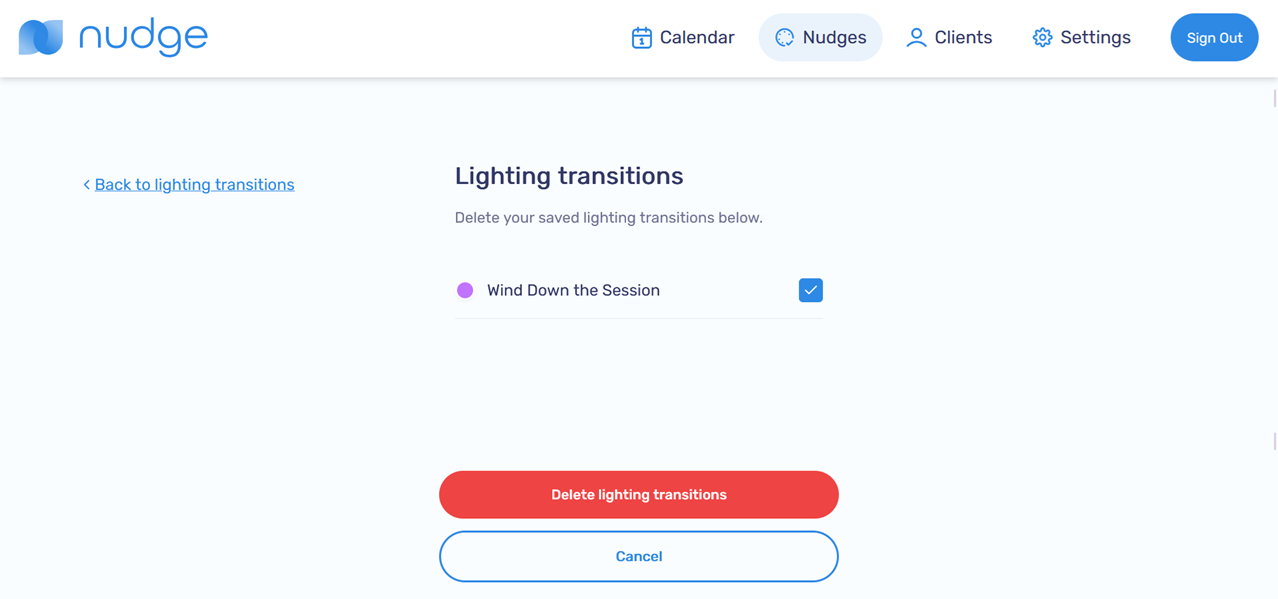
Select the recordings you want to delete, then click Delete lighting transitions
-
Your changes will be reflected after saving