Managing your account
Manage your account details, update your email or password, and delete your account from the Account page
Accessing the Account Page
-
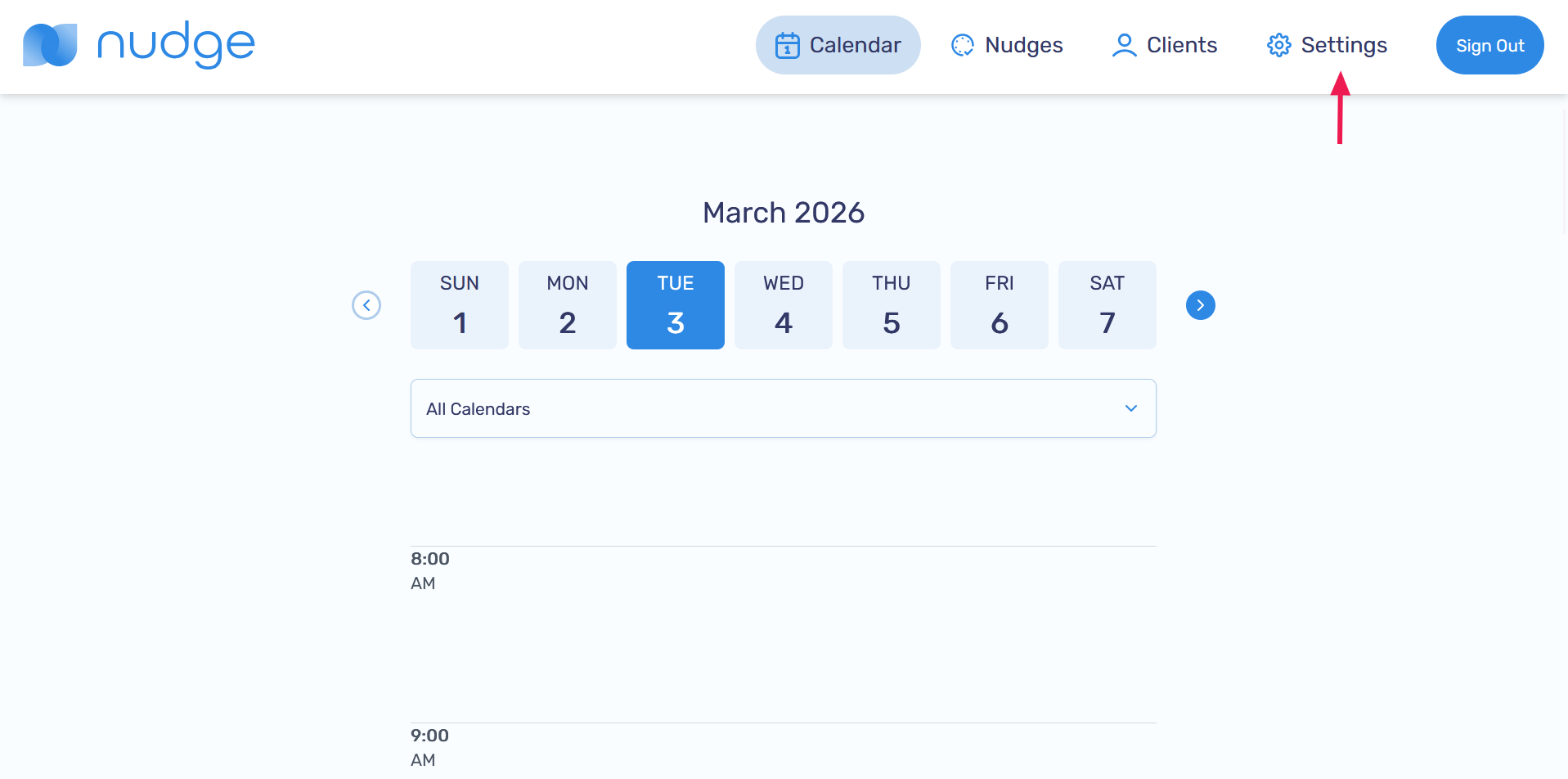
Go to the Settings page
-
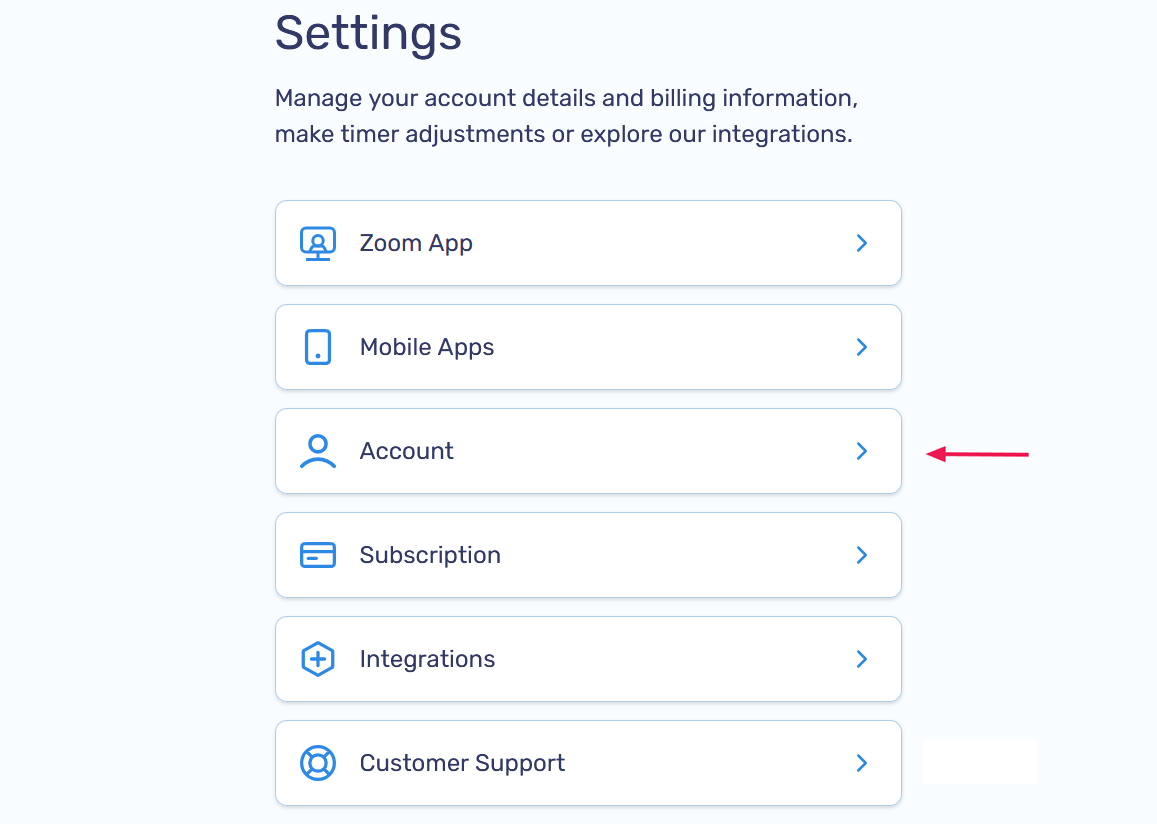
Select the Account option
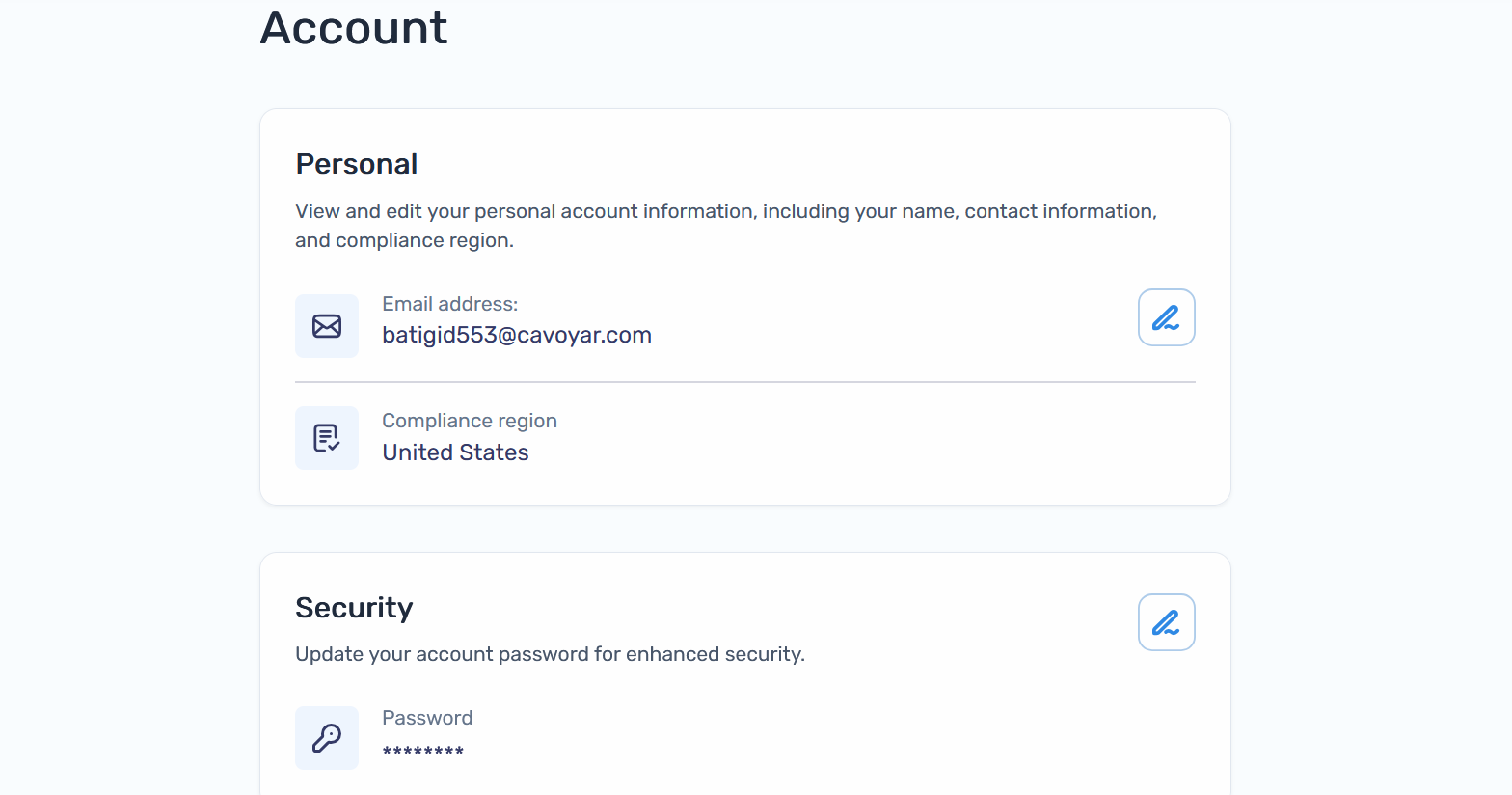
On the Account page, you can view and edit your email, compliance region, and password, or delete your account if needed
Edit your email address
-
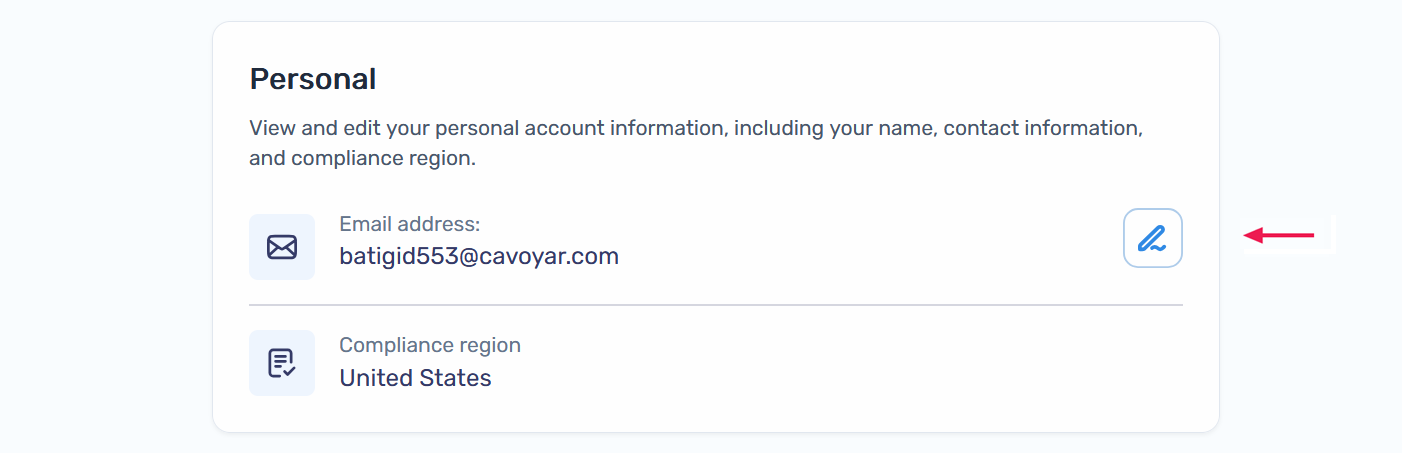
On the Account page, click the
 icon next to your email in the Personal section
-
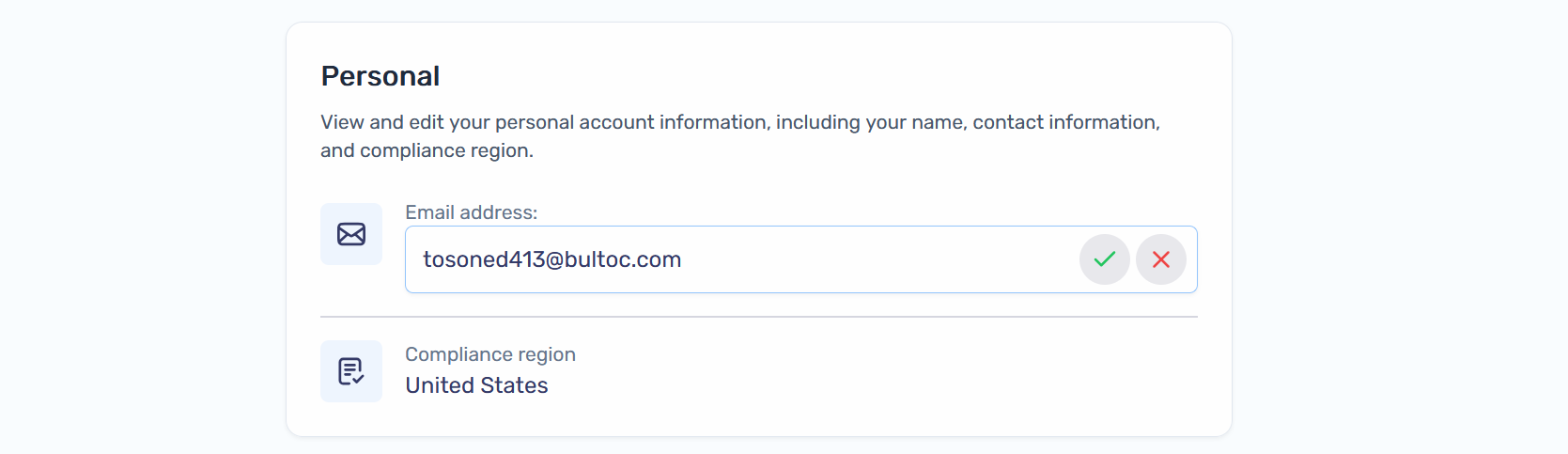
Enter your new email and click on the ✔️ icon to proceed
-
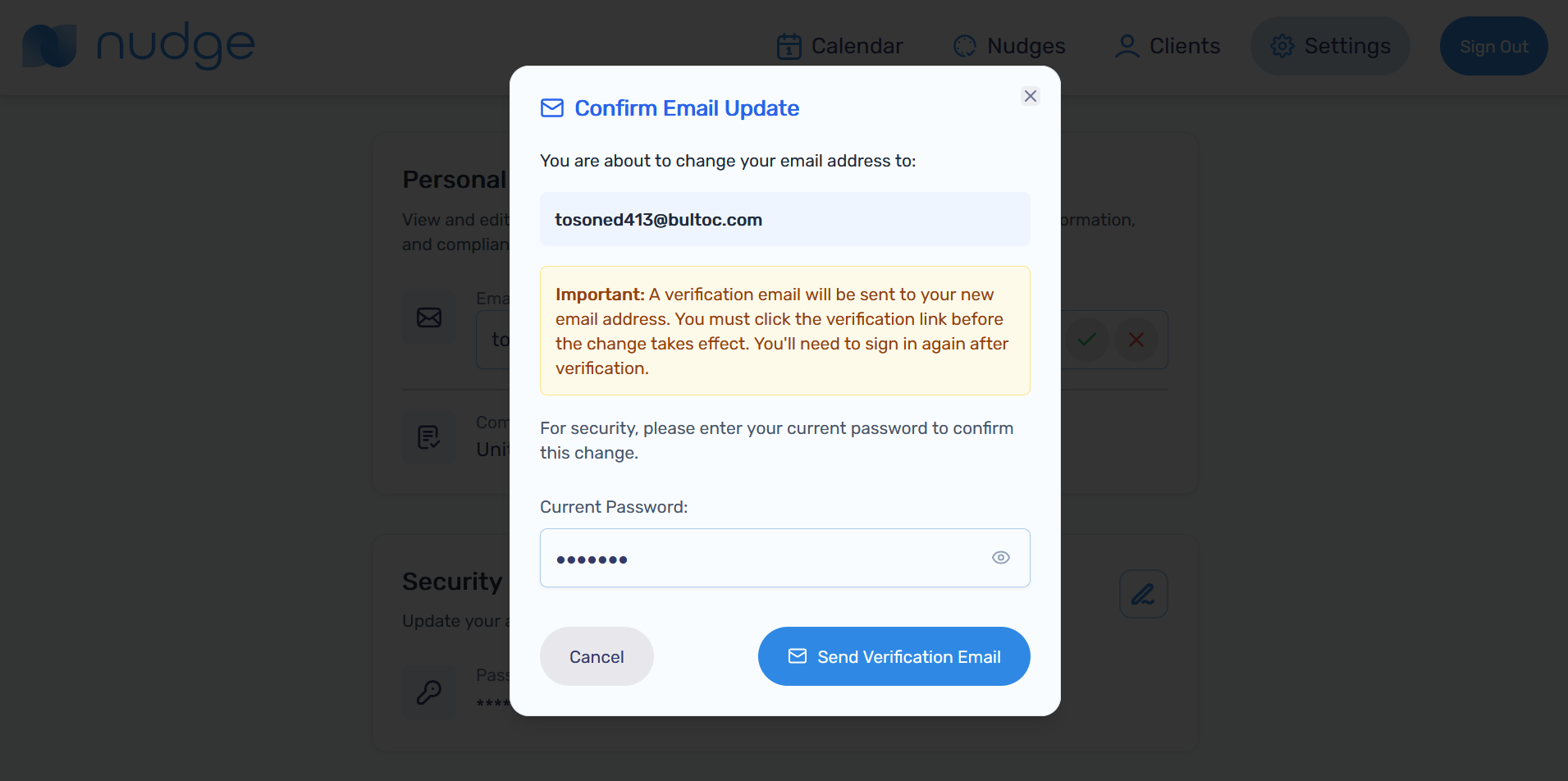
Enter your current password then click on the Send Verification Email button to continue
-
An email will be sent out to your new account email. You will need to click on the verification link for the change to take effect. Once you have clicked on the verification link, you should be directed to a page similar to the one below

-
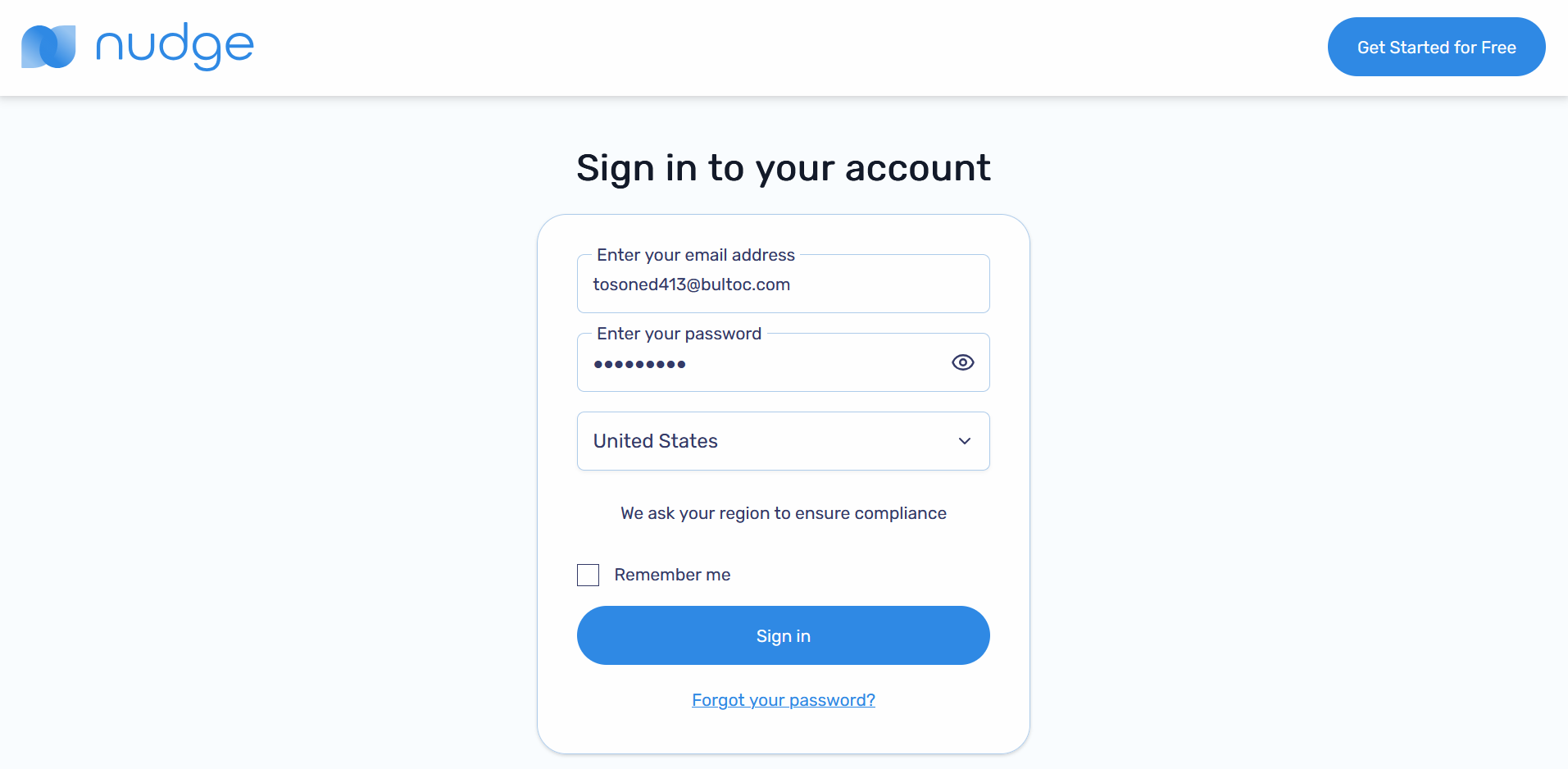
You can now log into your account with your new email address
Edit your password
-
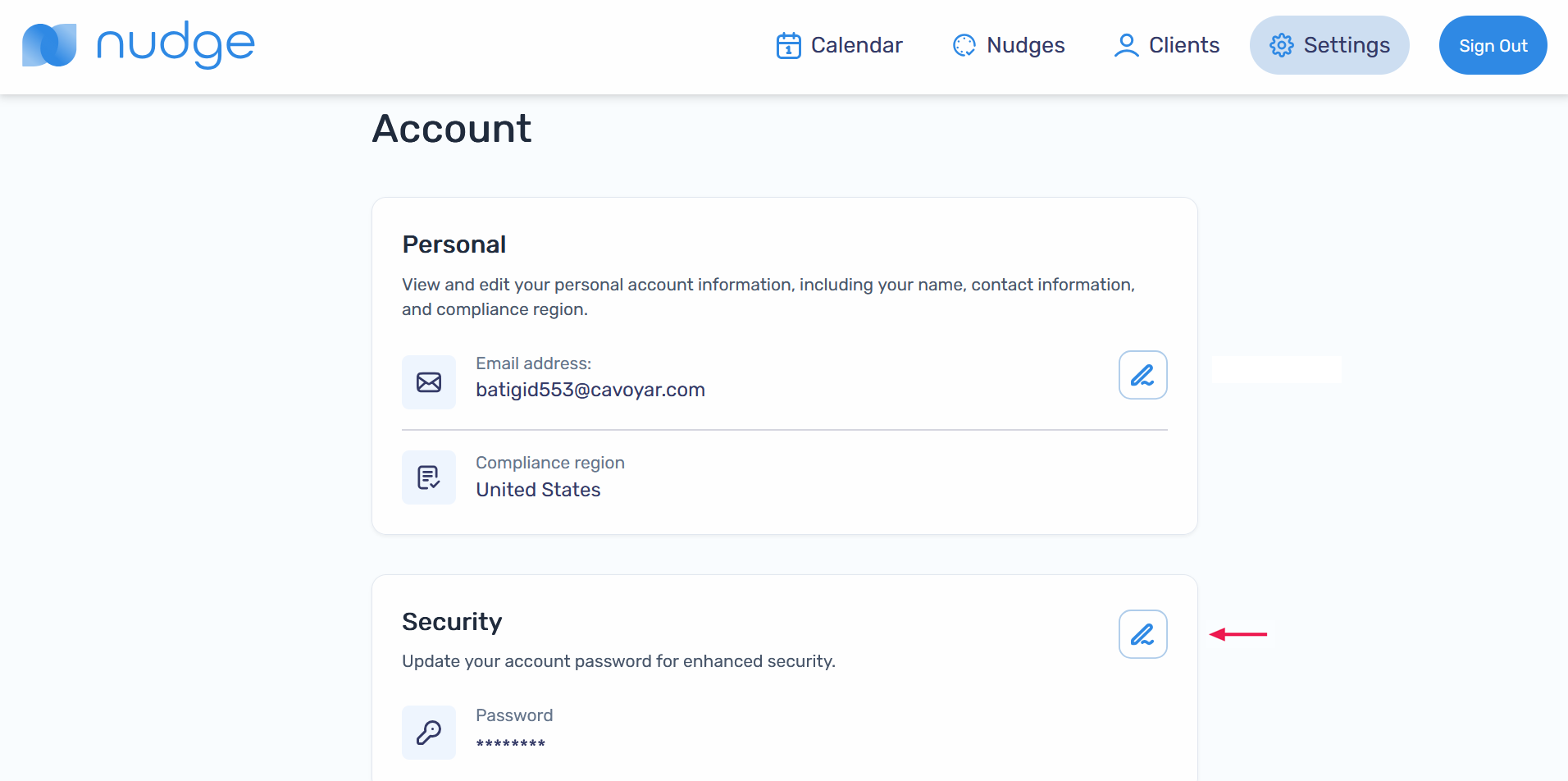
From the Account page, click on the
icon next to your password in the Security section
-
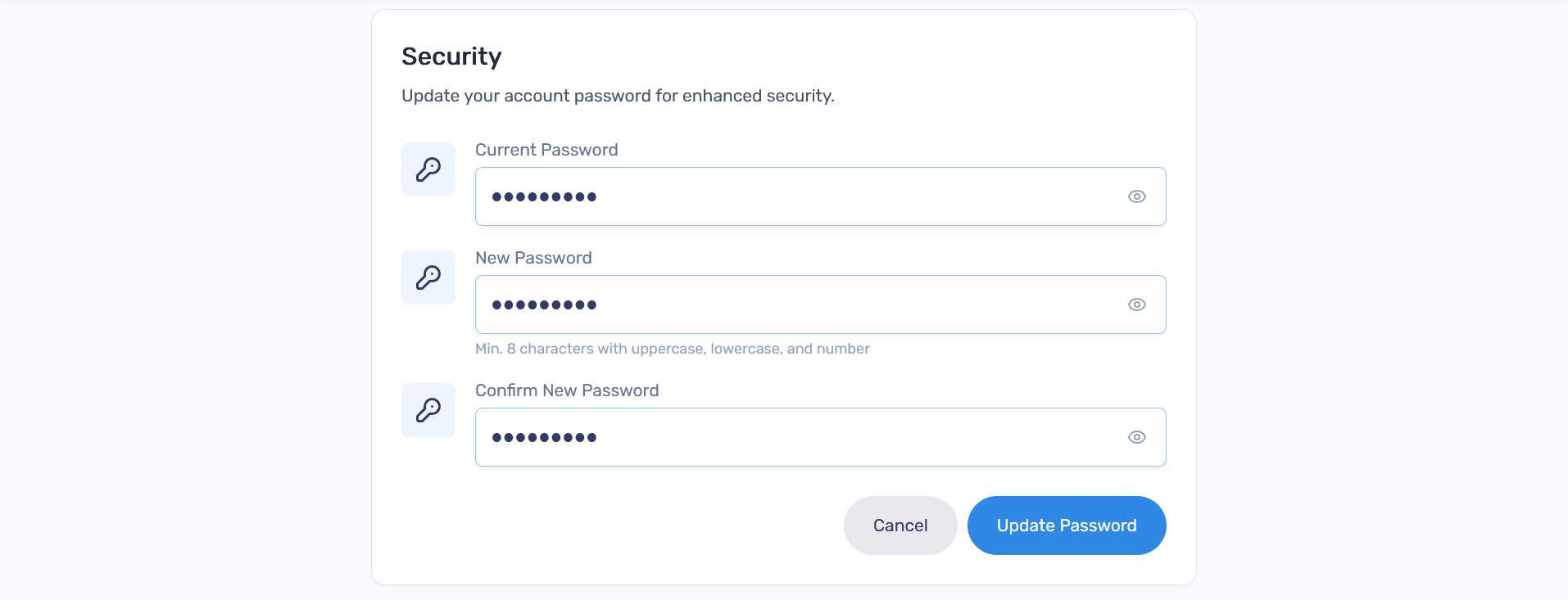
Enter your current password and new password. Passwords must be at least 8 characters long and must include at least 1 uppercase letter, 1 lowercase letter and 1 number. When ready, click on the Update Password button to update your password
Delete your account
-
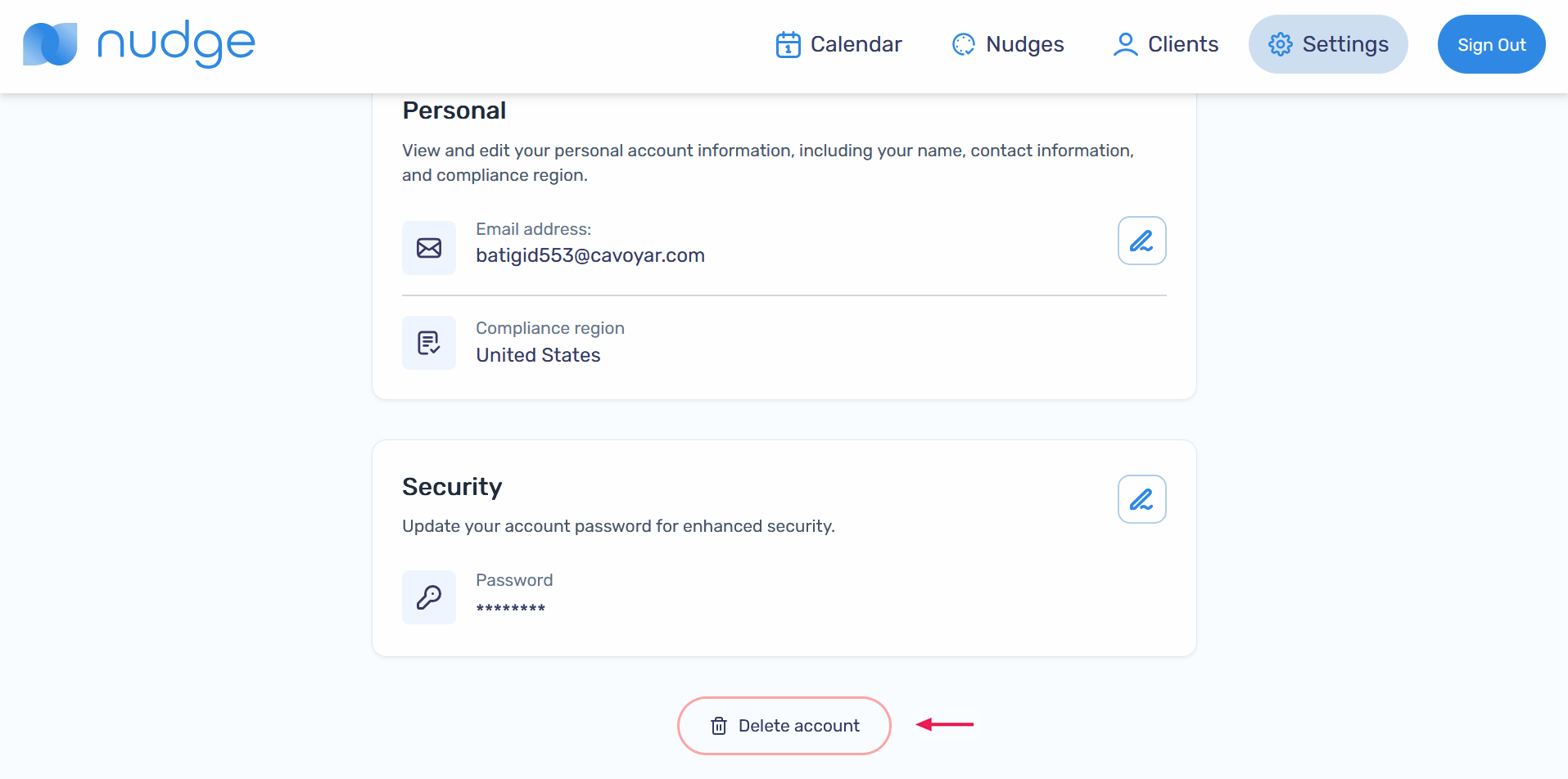
From the Account page, click on the Delete account button
-
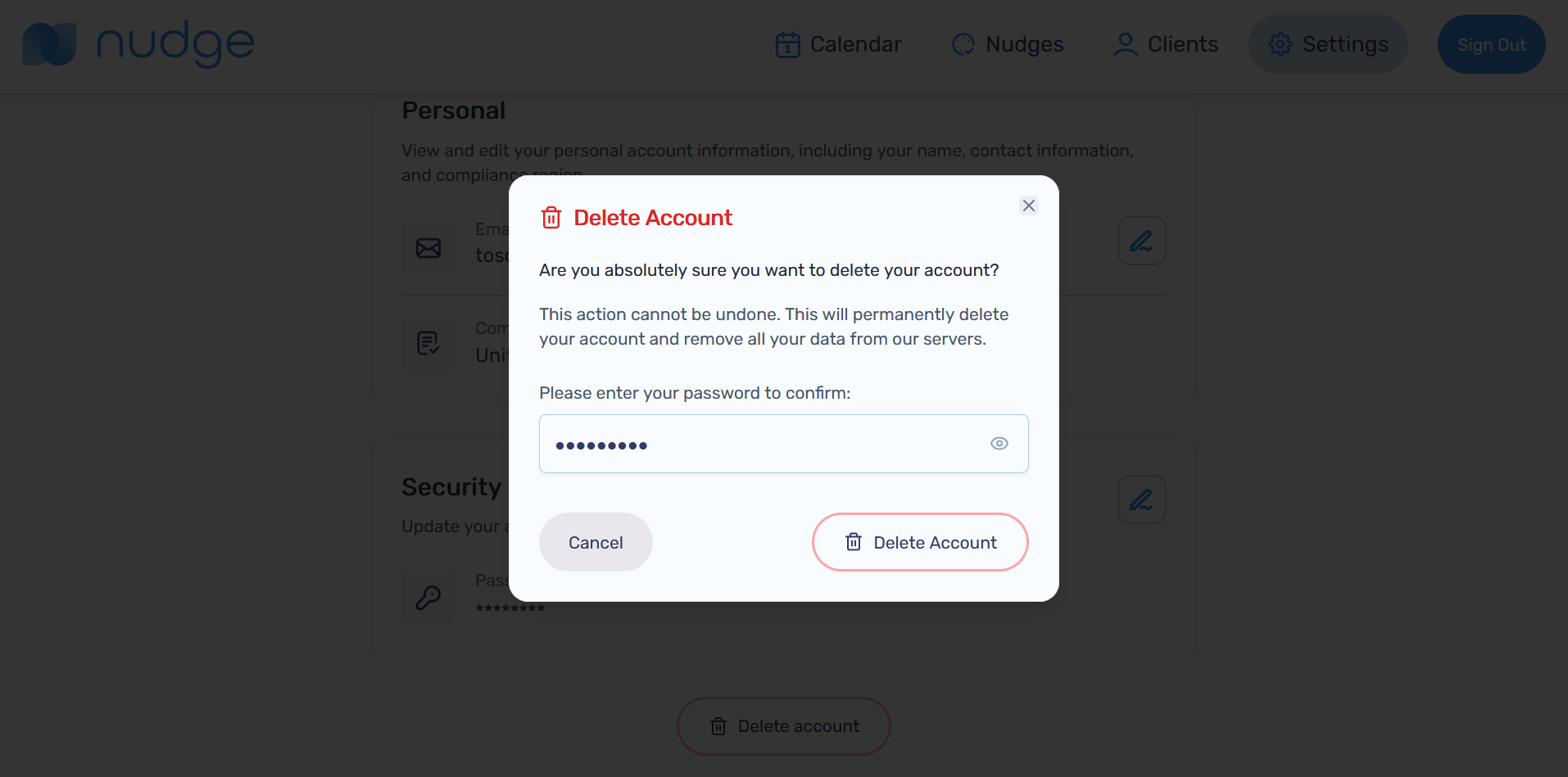
Enter your password to confirm you want to delete your account, then click the Delete Account button